How to write descriptions for products, categories and blog
How to write descriptions for products, categories and blog?
How to easily create nice content for your product, category and blog pages with Pobo editor? We'll show you how in this help.
How to write the first caption?
The content for product, category, blog article and share descriptions is created identically.
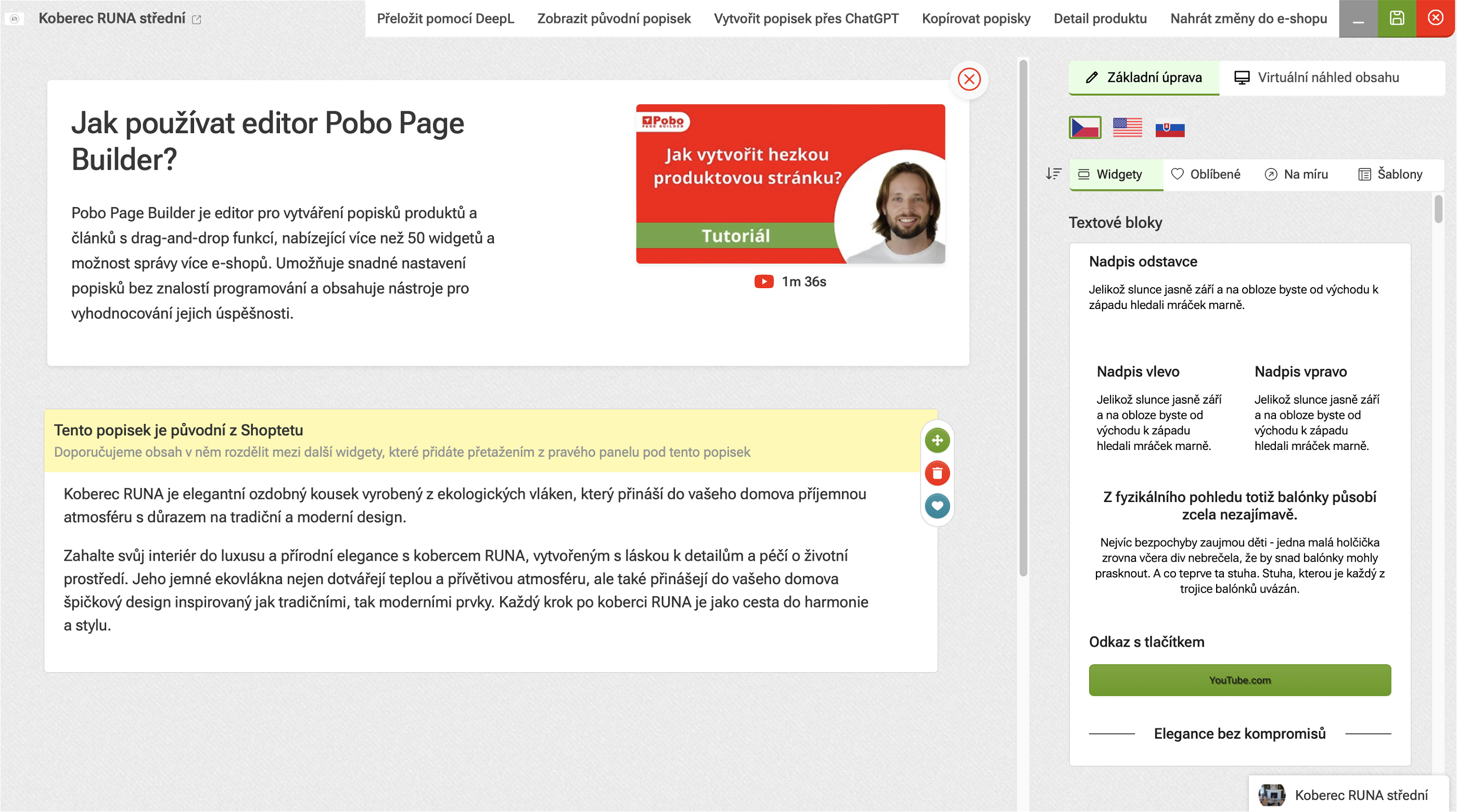
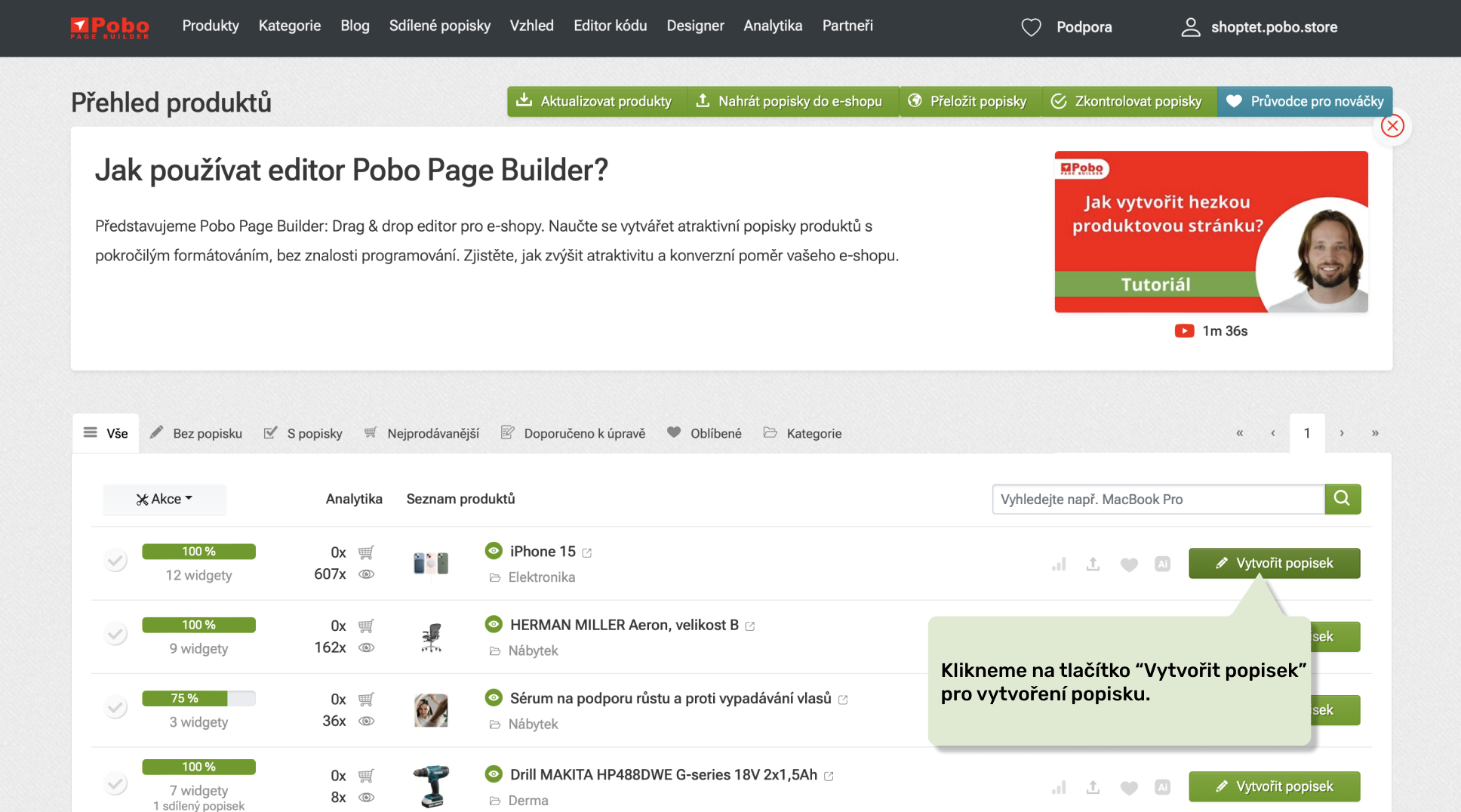
So let's create the first product description. On the product overview, click on the green Create description button. This will then open the editor where we can add content.
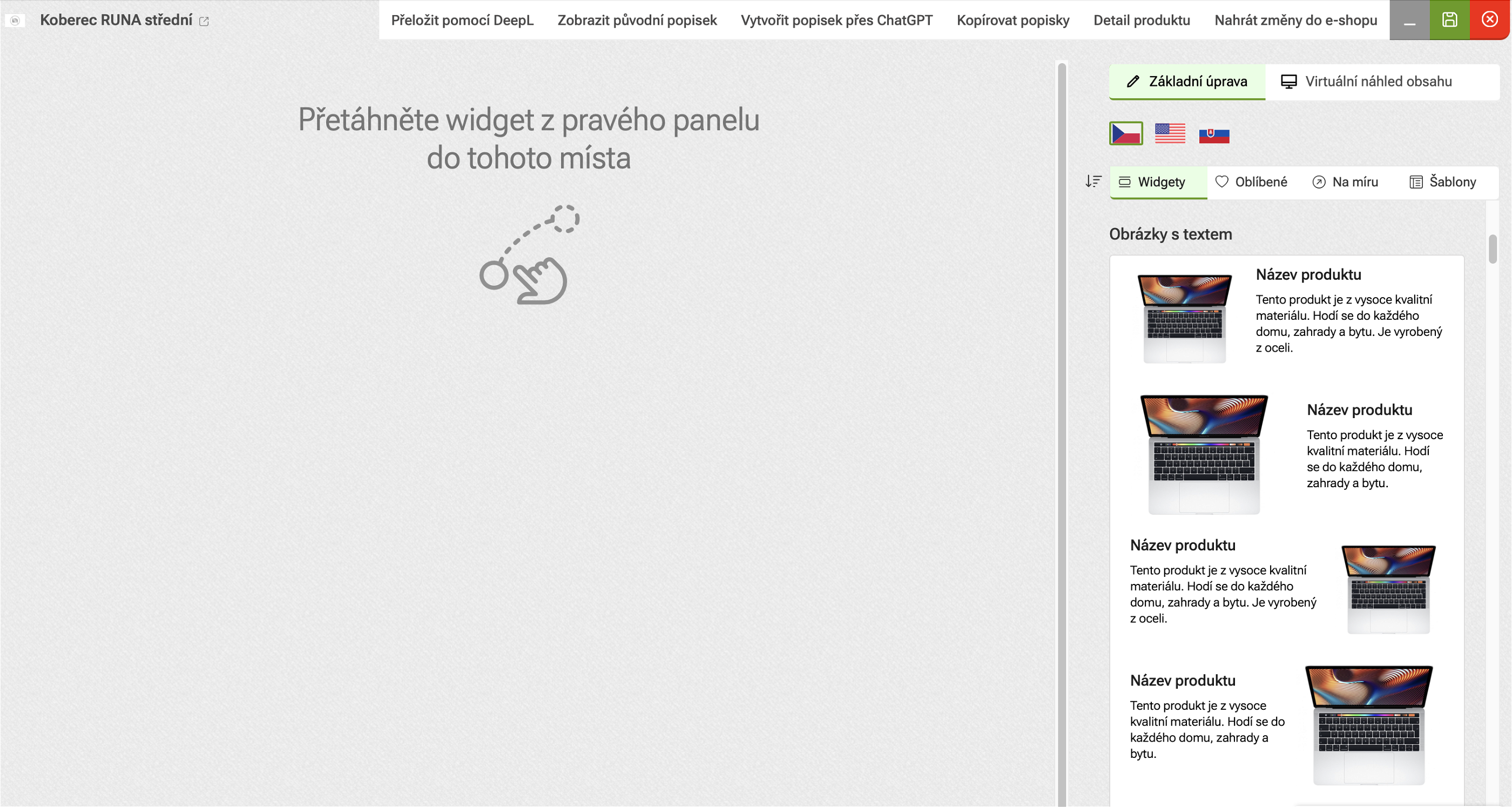
In the editor, the original label, which is stored in the e-shop, will be displayed in the middle part (after the first loading of the product). This label can be removed or used as information for further content. In the right part we see the actual list of widgets that we can use for the content. We can choose from images, galleries, YouTube video clips, icon blocks, review templates, FAQs or images with short information.
How to add content widgets?
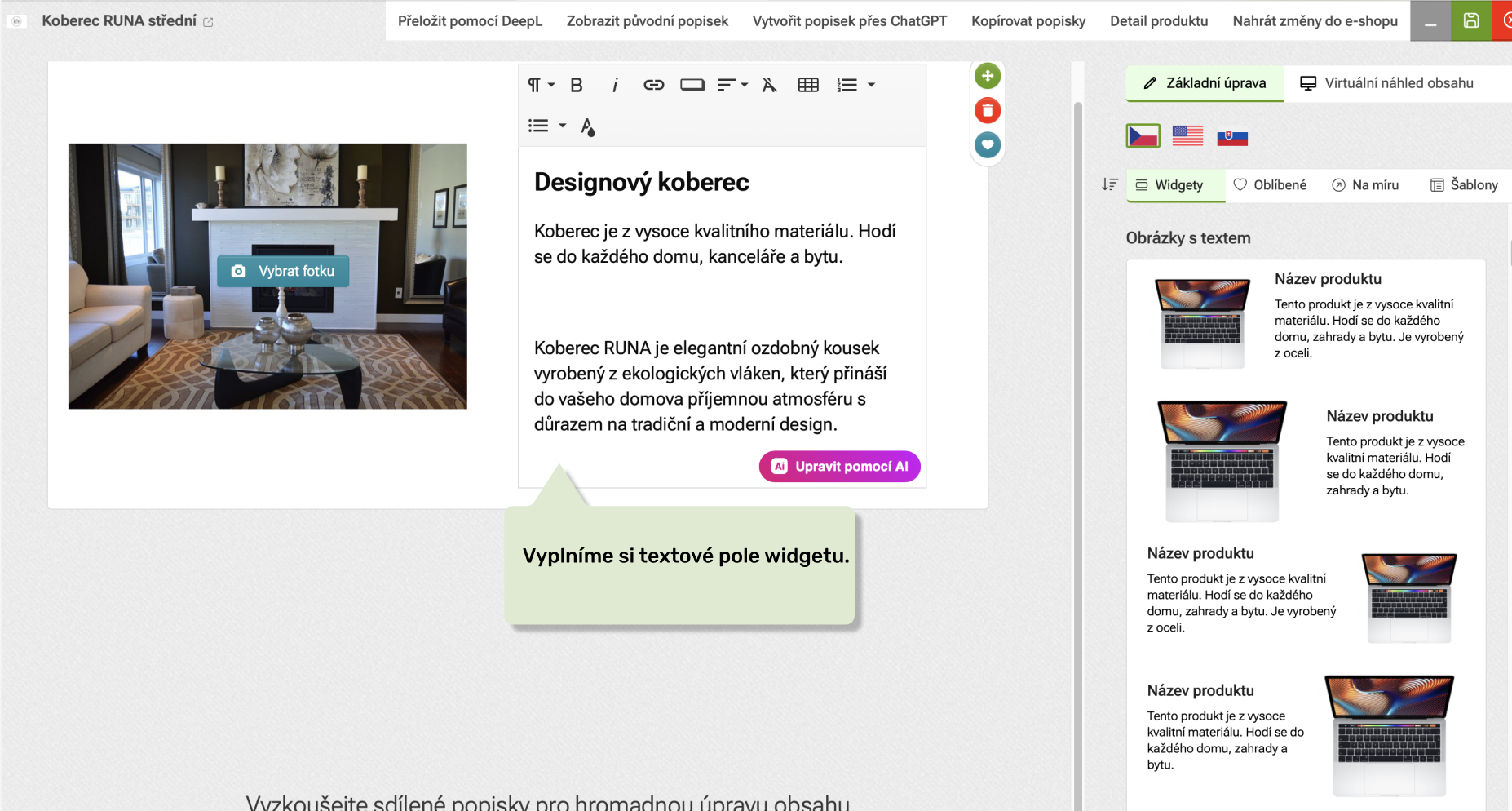
Now let's try creating a caption with an image on the right and text on the left that is composed of two images and text that appears to the right and then to the left of the image. So we find a widget in the list with the image on the left & text on the right and drag it into the content.
Then insert the second widget with the photo on the right and the text on the left, fill in the text and click on the Select photo button to display a modal window where we select the photo to insert into the widget.
How to delete or move a widget?
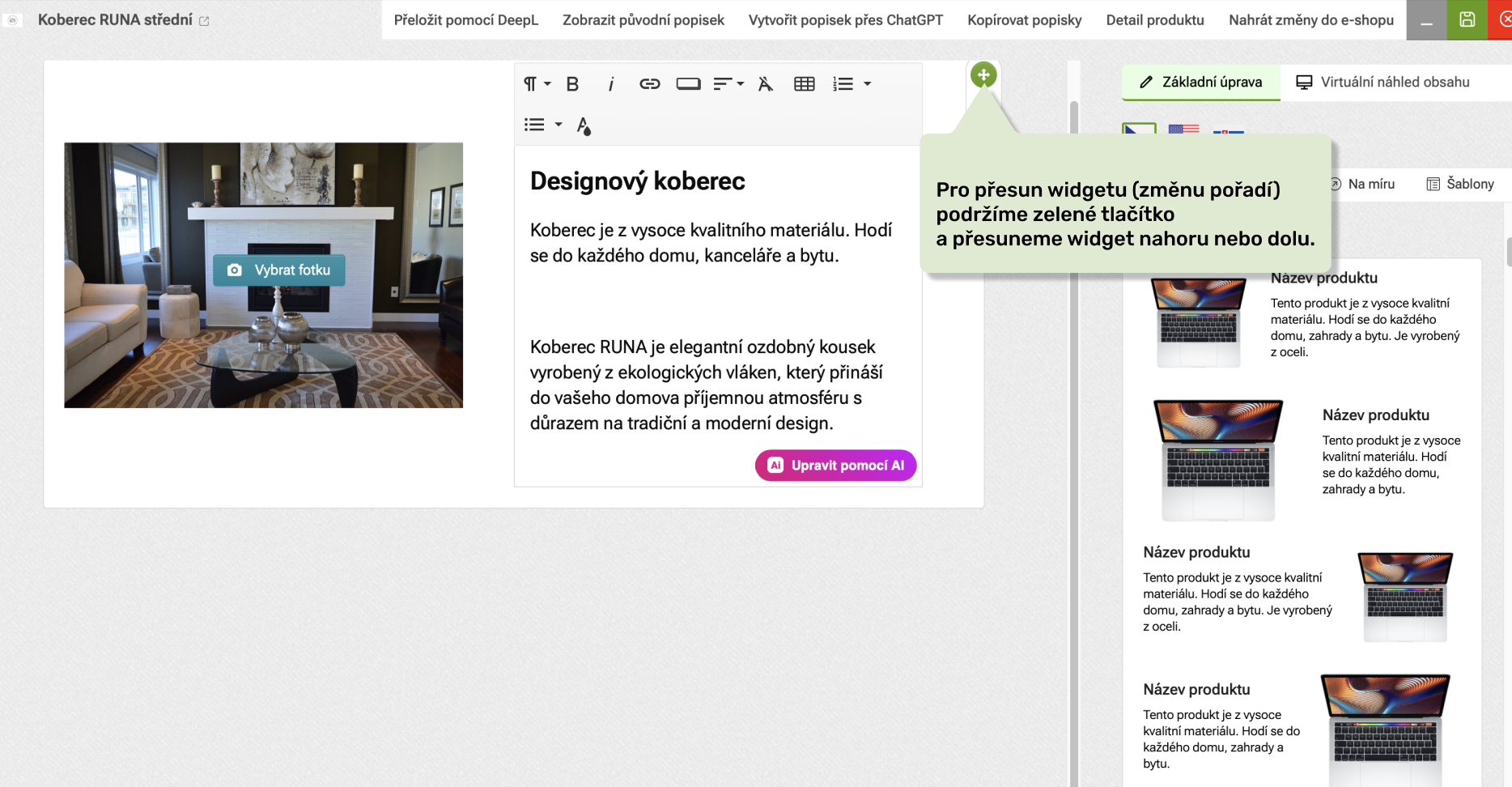
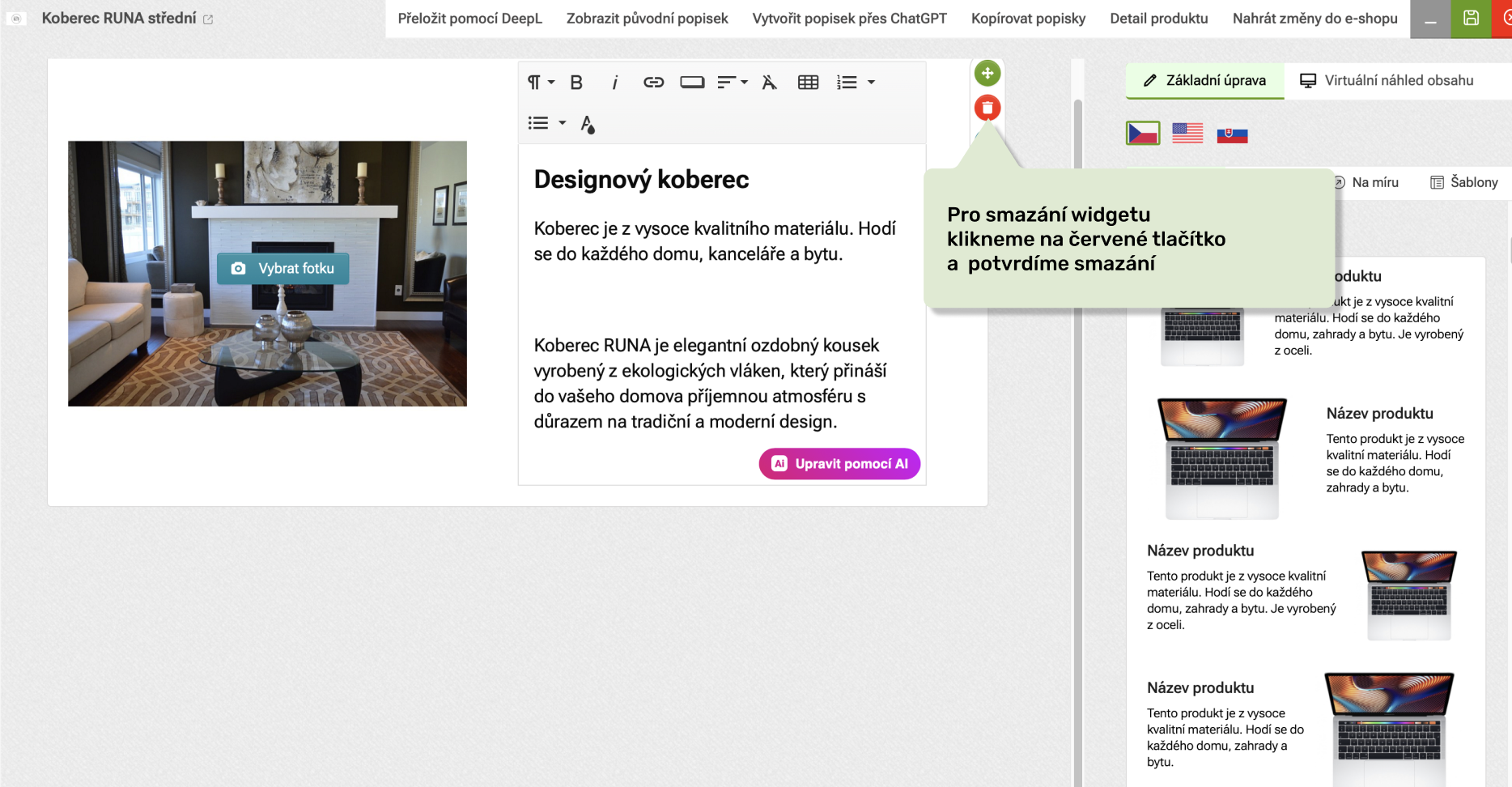
In case we want to delete the widget, we click on the trash can icon on the right side of the editor and confirm the deletion. If we want to move the widget and change its order, click and hold the green icon. Drag up or down to move the widget to the desired location.
How to work with text?
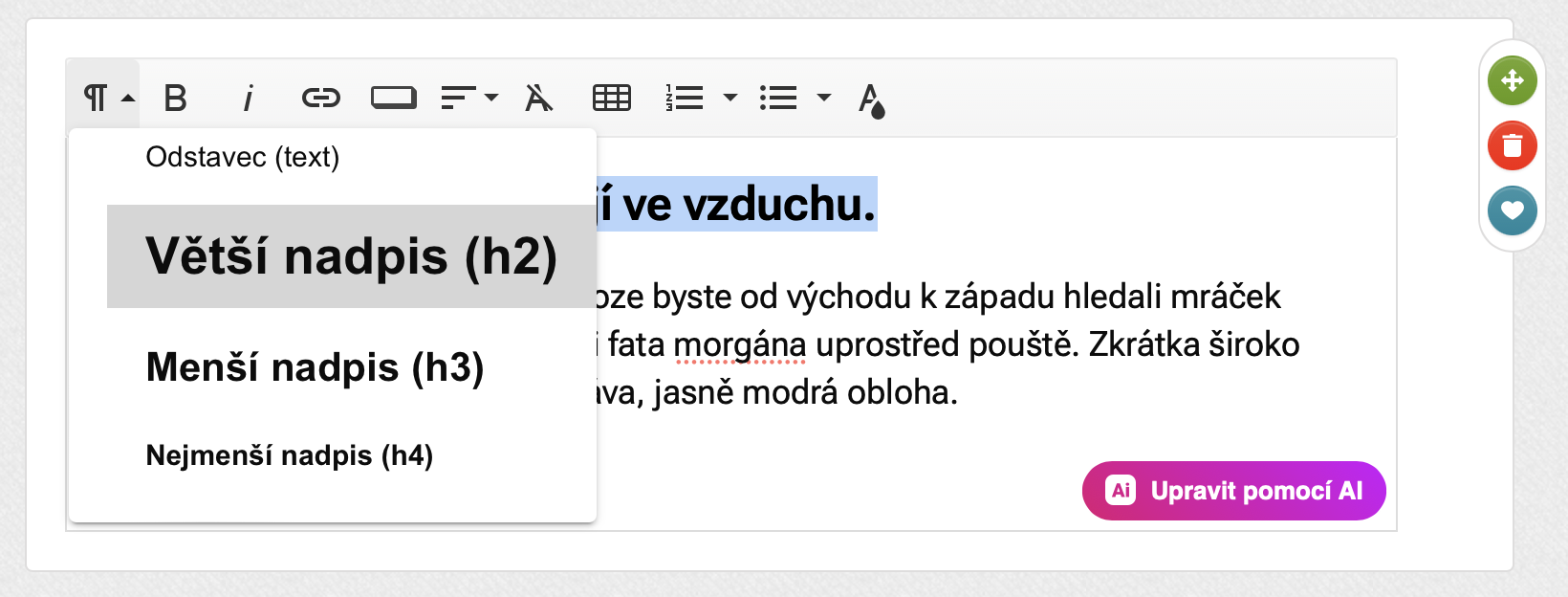
To work with text, Pobo Page Builder uses a WYSIWYG editor, where you can type a second, third and fourth level heading, paragraph, table, numbered/ bulleted list, button or link. You can edit the formatting of the text - e.g. mark the text in bold, italics, change the alignment or colour.
So, in the top panel, select the button with the desired formatting function. After clicking on the icon, a tooltip will be displayed for easy orientation.
What should I do if I make a mistake?
In case we make a mistake, we can use the "undo" shortcut:
- CMD+zfor macOS
- CTRL+z for Windows
How to work with images and icons?
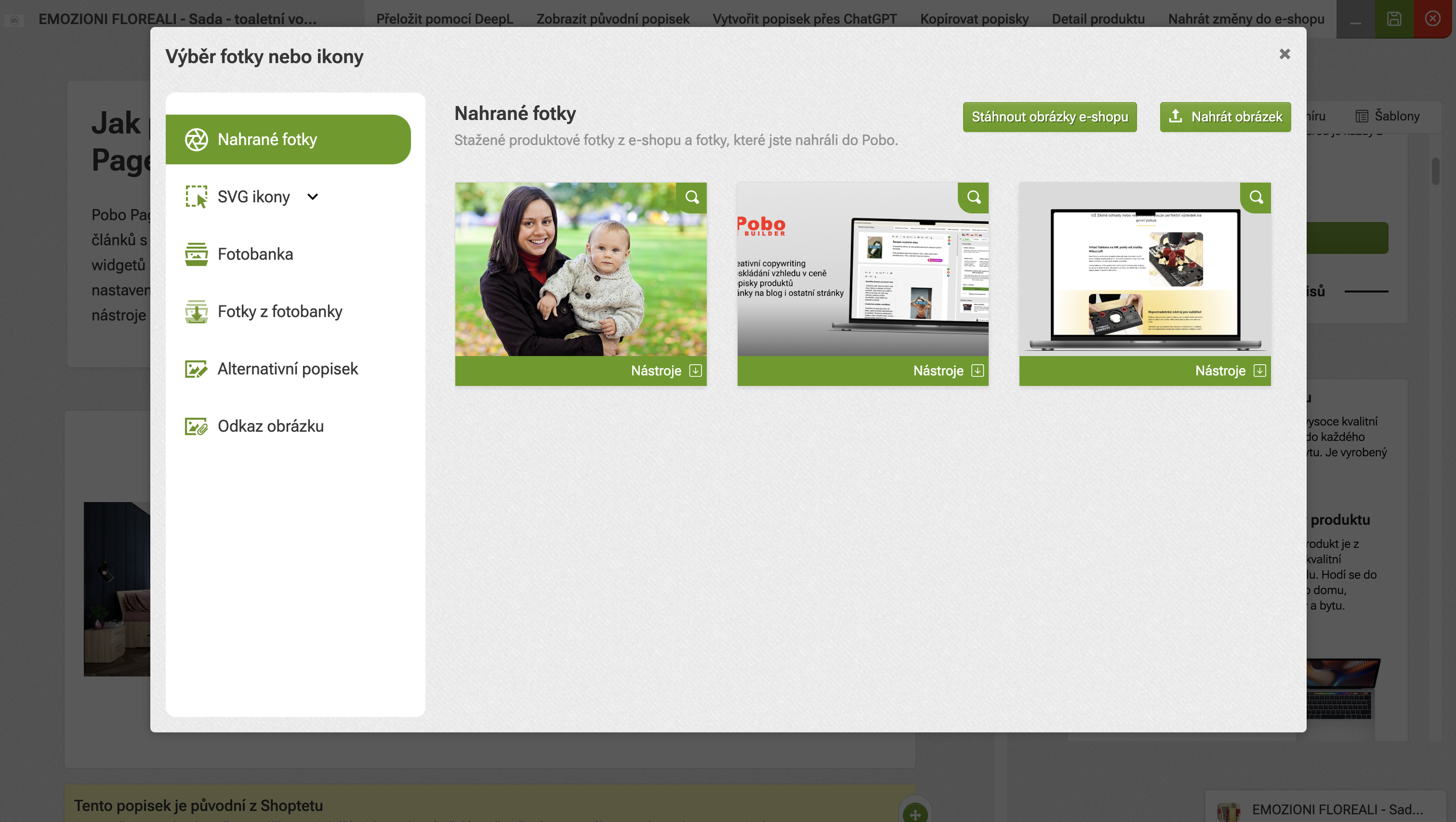
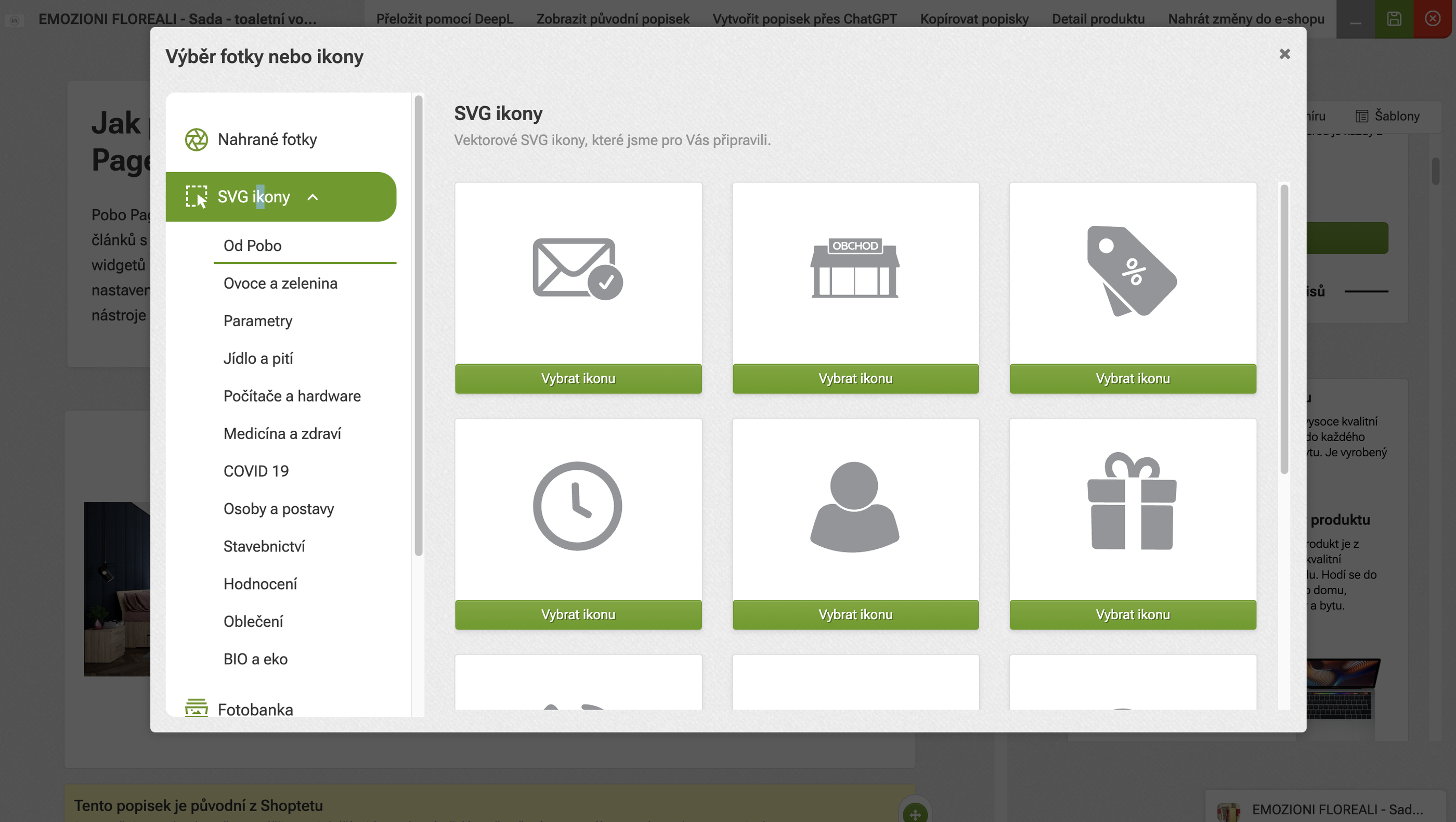
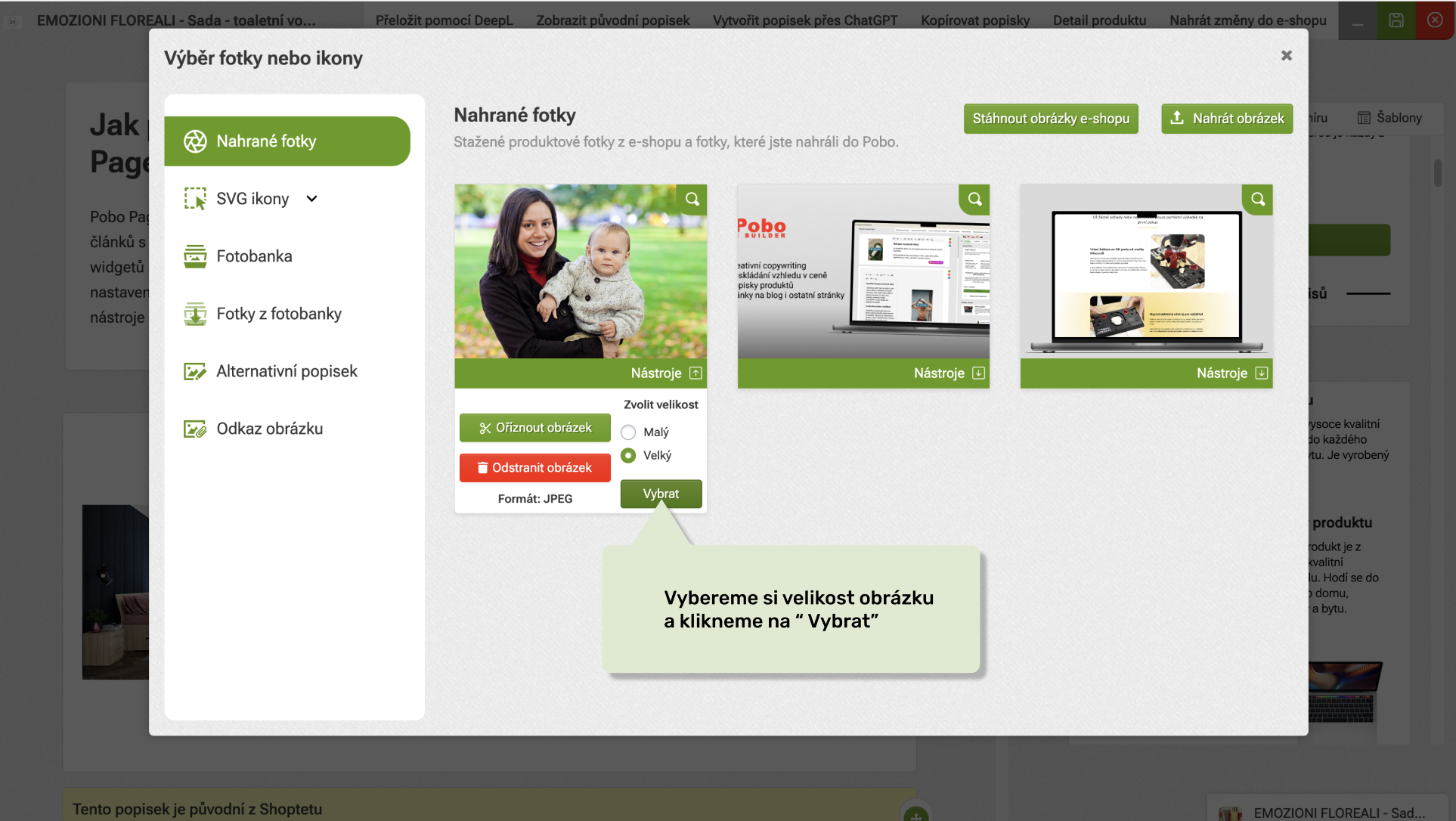
When you click on the camera icon, a modal window appears in which you can work with images and icons. The main features offered by Pobo Page Builder are:
- Upload new photos to the product (allowed formats are PNG, JPG and JPEG).
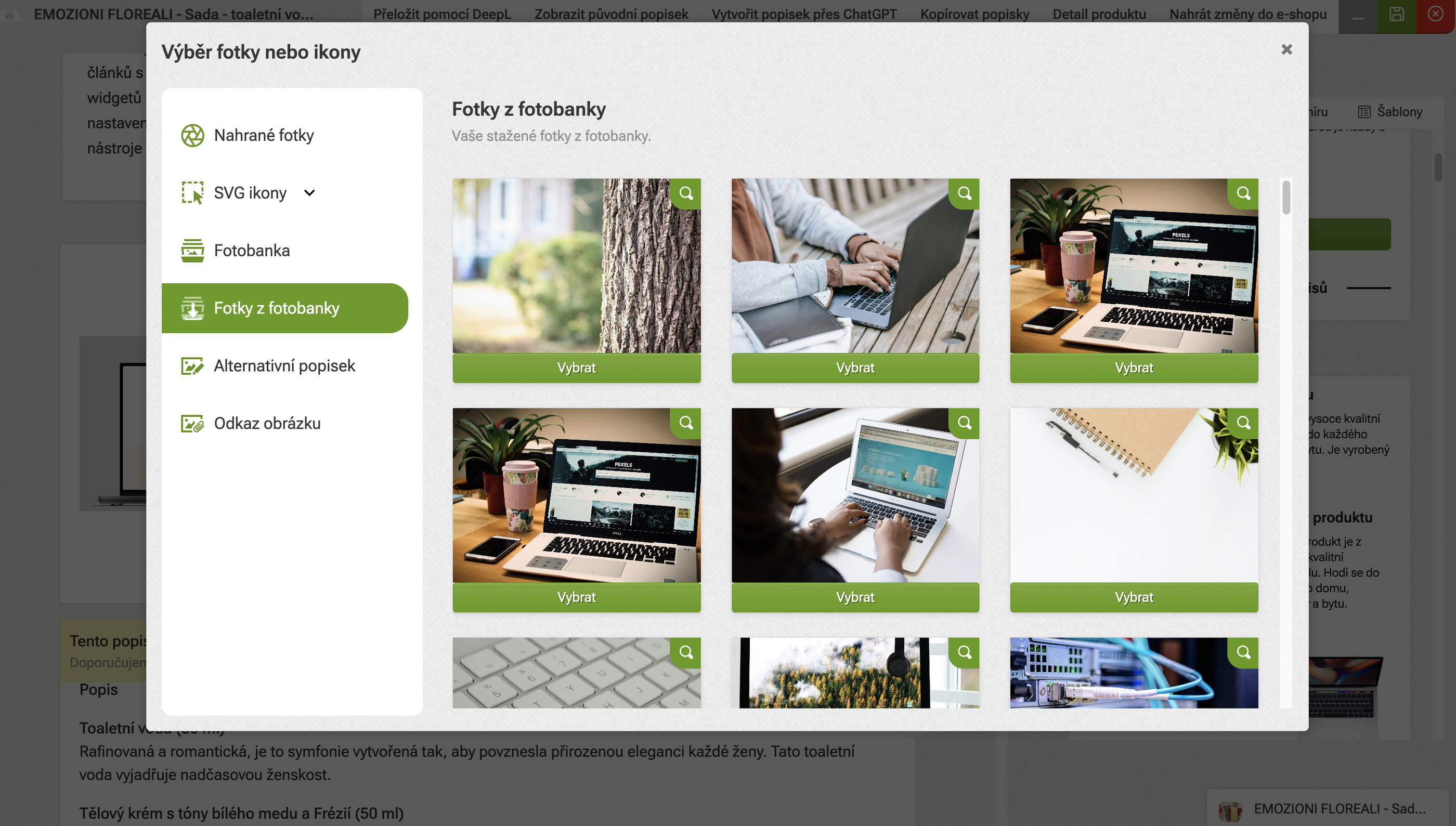
- Download product images from the e-shop to Pobo Page Builder
- Choose one of 350+ pre-made SVG icons
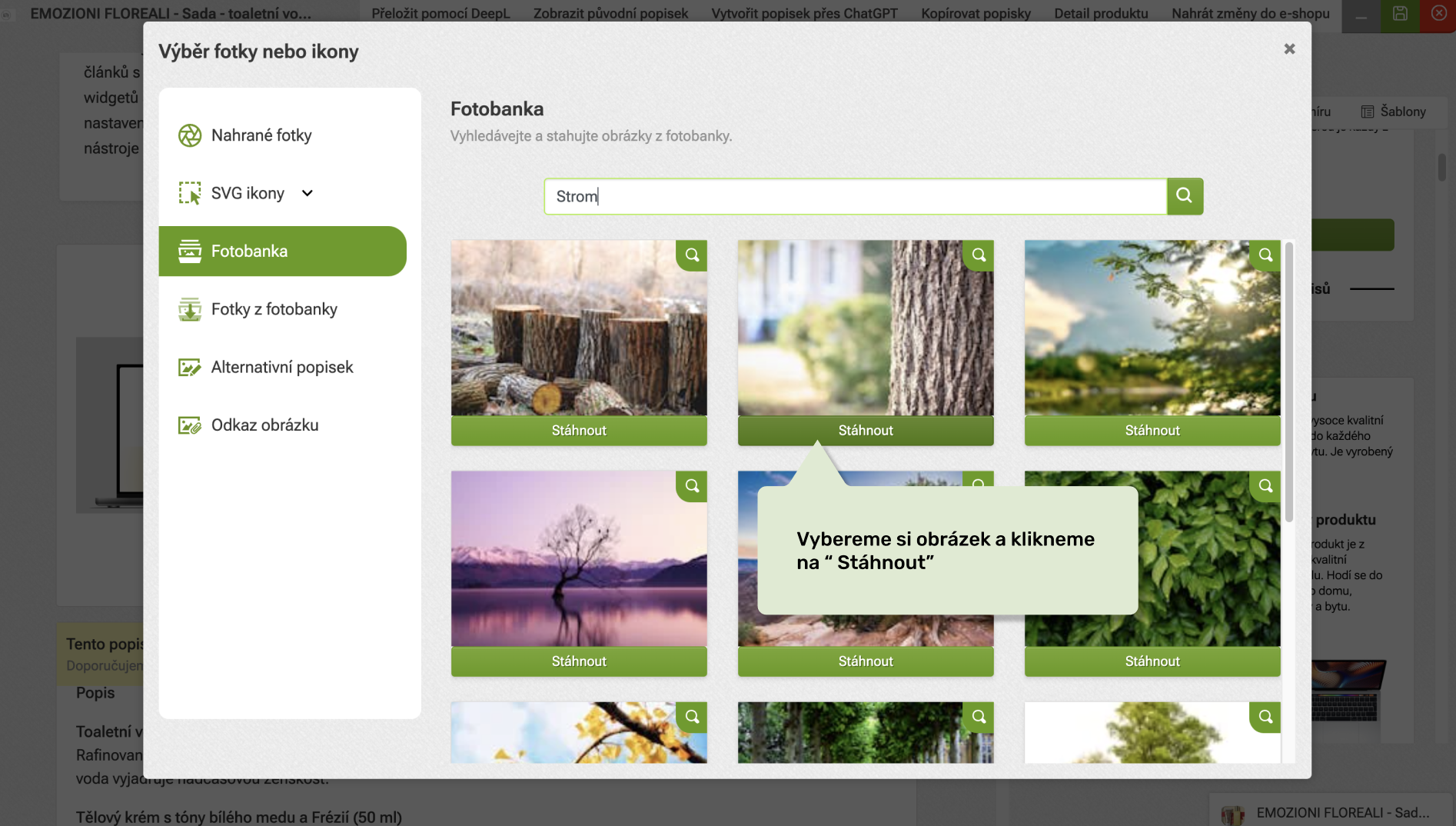
- Choose one of 5 000 000+ photos from the photo library
- Crop photo (JPEG and JPG only)
- Delete photo (photo is not deleted from captions, only from photo overview)
- Insert photo or icon into widget
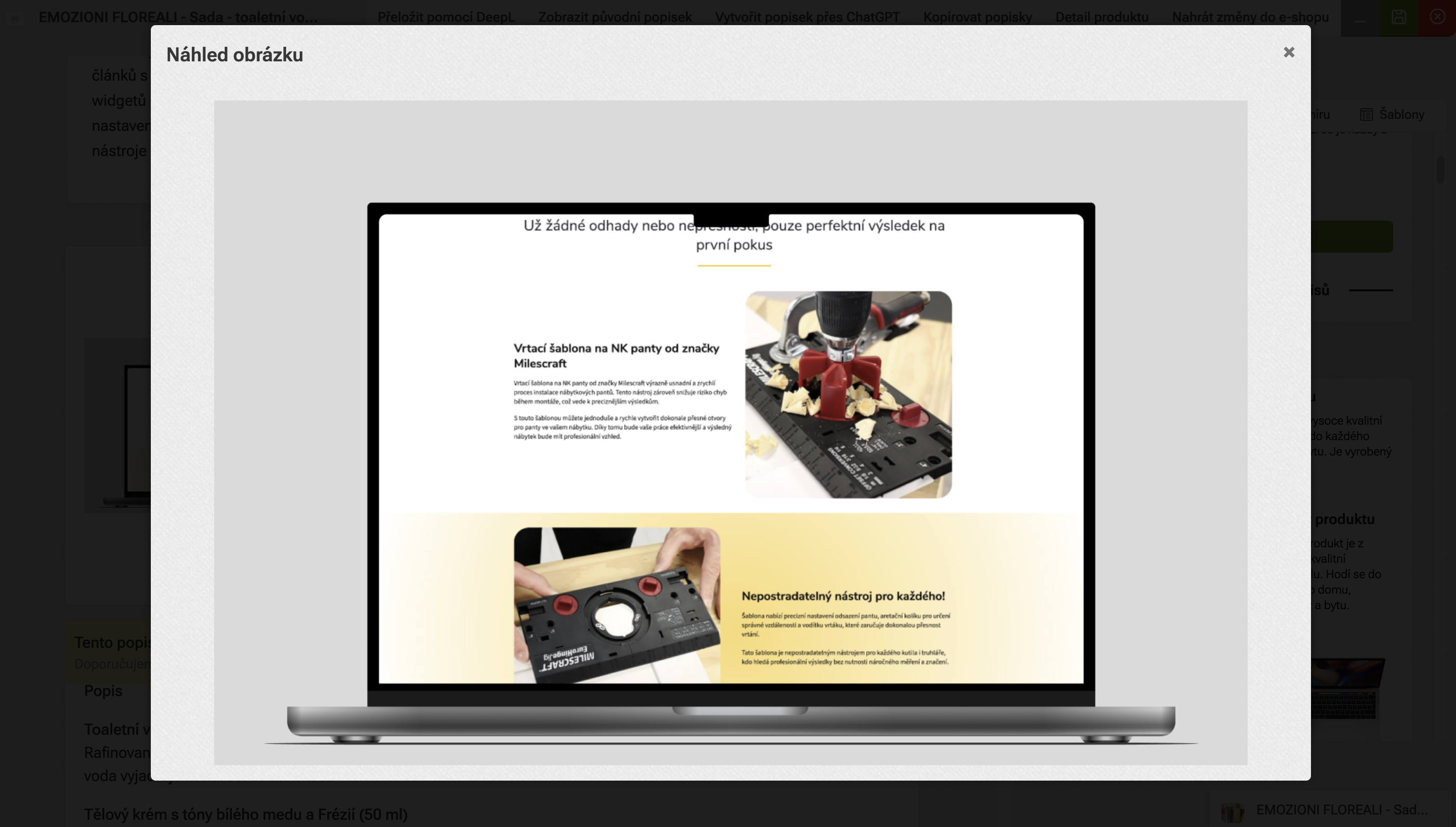
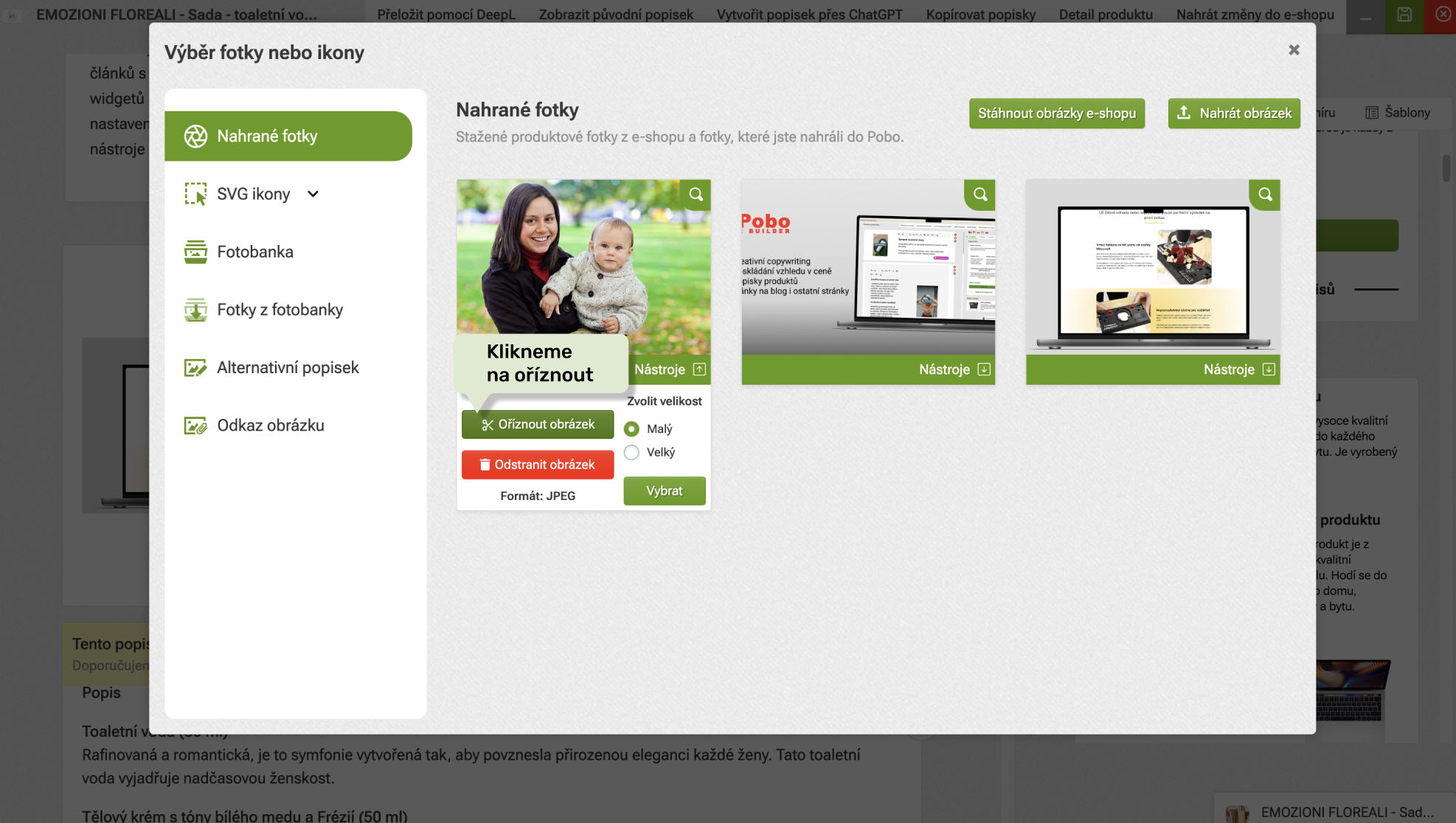
Below the photo thumbnails there is a pull-down menu called " Tools", when clicked it will display the image format. Also in the menu there is an optionto choose the size of the image to be inserted into the widget, in the menu we can also delete the image. We can also click on the magnifying glass icon to view the photo in a higher resolution. Last but not least, we can also crop the photo here - a useful feature if we need to create a close-up (cutout) or want to erase the white space around the photo itself.
How to edit the image?
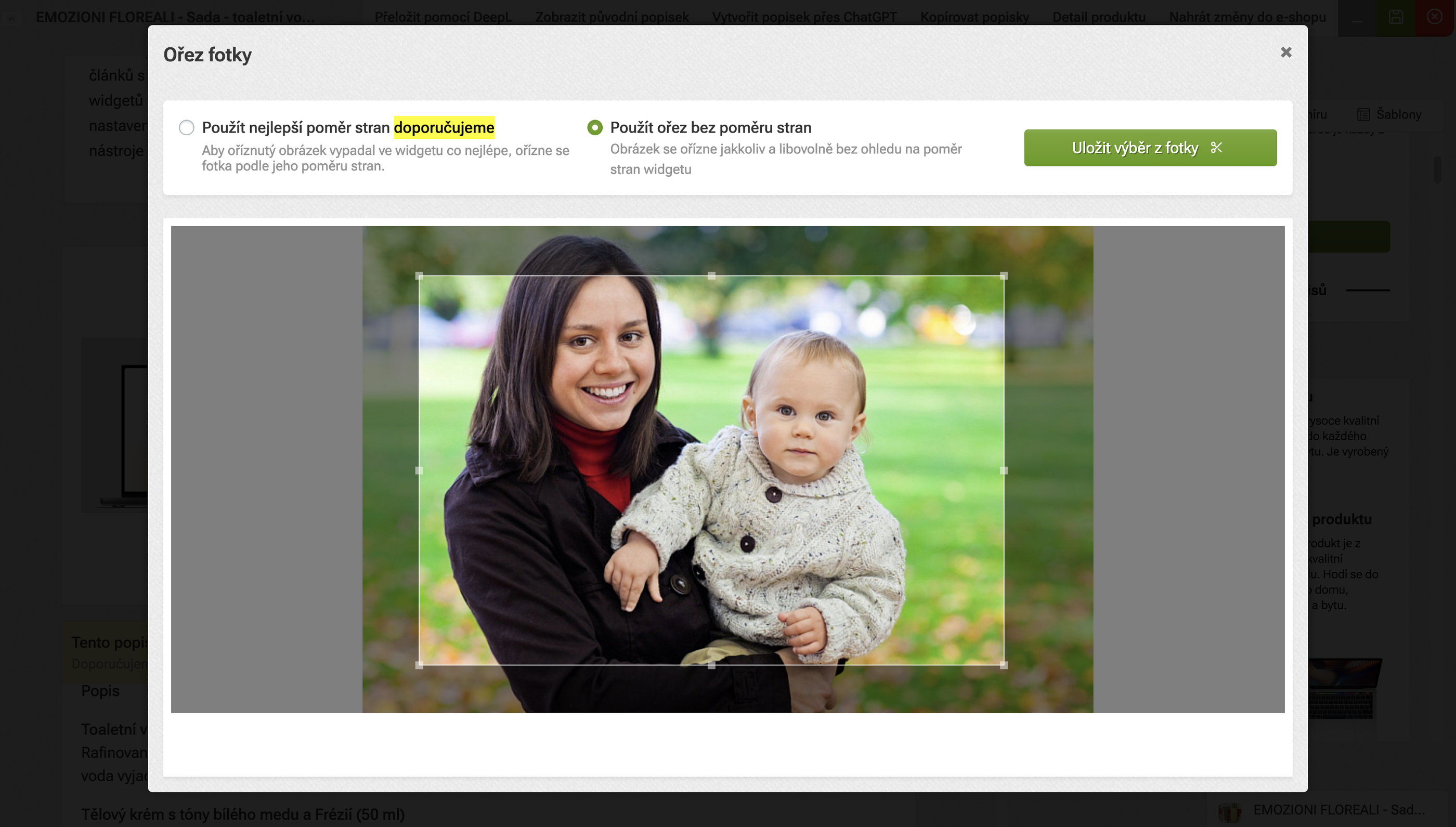
Crop photos if you want to, for example, delete the white space around the photo or create a detailed cutout. To crop a photo, click on the "Crop Image" button in the drop-down menu next to the photo and the crop tool will open. Select the crop and save. The crop will then appear in the photo selection.
How to use the photo bank?
- In the Photobank tab , search for an image based on keywords
- Click onDownload next to the selected image
- The image will be downloaded to the Photos tab of the photo library
How to add alternative text to an image?
In Pobo, we add an alt tag in the image administration. First we add the image we want to describe with the alt tag to the selected widget. After clicking on"Select photo" on our selected image, a modal window will appear. Here we click on"Alternative label" and enter a description of the image/photo in the text box. Finally, click on"Save alternative text".
The reasons for using the alt tag are as follows:
- Accessibility: the alt tag allows people with visual impairments who use screen readers to understand what the image is showing. The screen reader reads the alternative text aloud, providing context for the image.
- Image Replacement: If the image is not displayed for some reason (for example, due to connectivity issues or an error on the page), an alt tag is displayed in place of the image, allowing users to understand what the image was intended to display.
- SEO: Alt tags help search engines better index web content by providing a description of the images. This can improve a site's ranking in search results, especially in image searches.
How do I insert a link into an image?
In Pobo, we add links to images in the image administration. First, we add the image we want to insert a link into to the selected widget. After clicking on"Select photo" in our selected widget, a modal window will appear. Here we click on"Image link" and enter a link (e.g. to other products, articles or categories) in the text box. Finally, click on"Save link".
How to add a YouTube video clip?
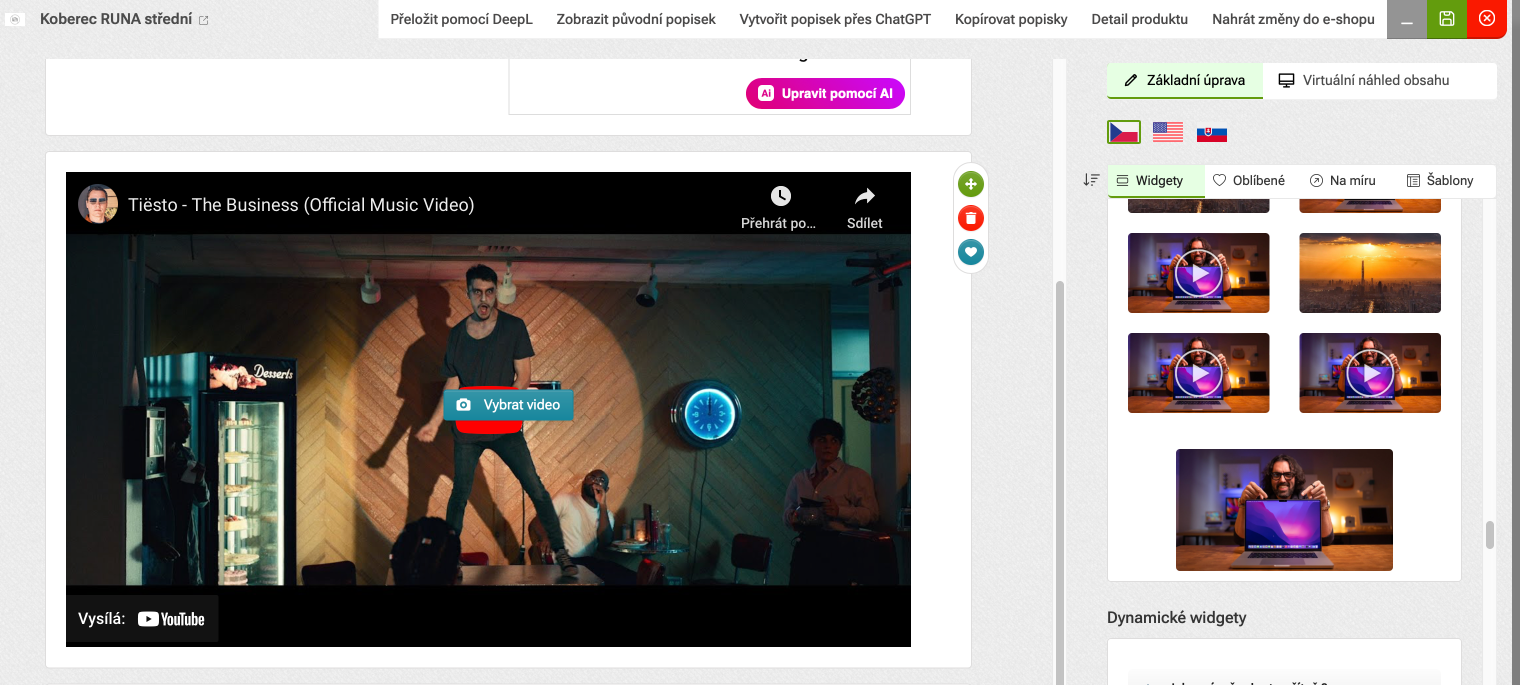
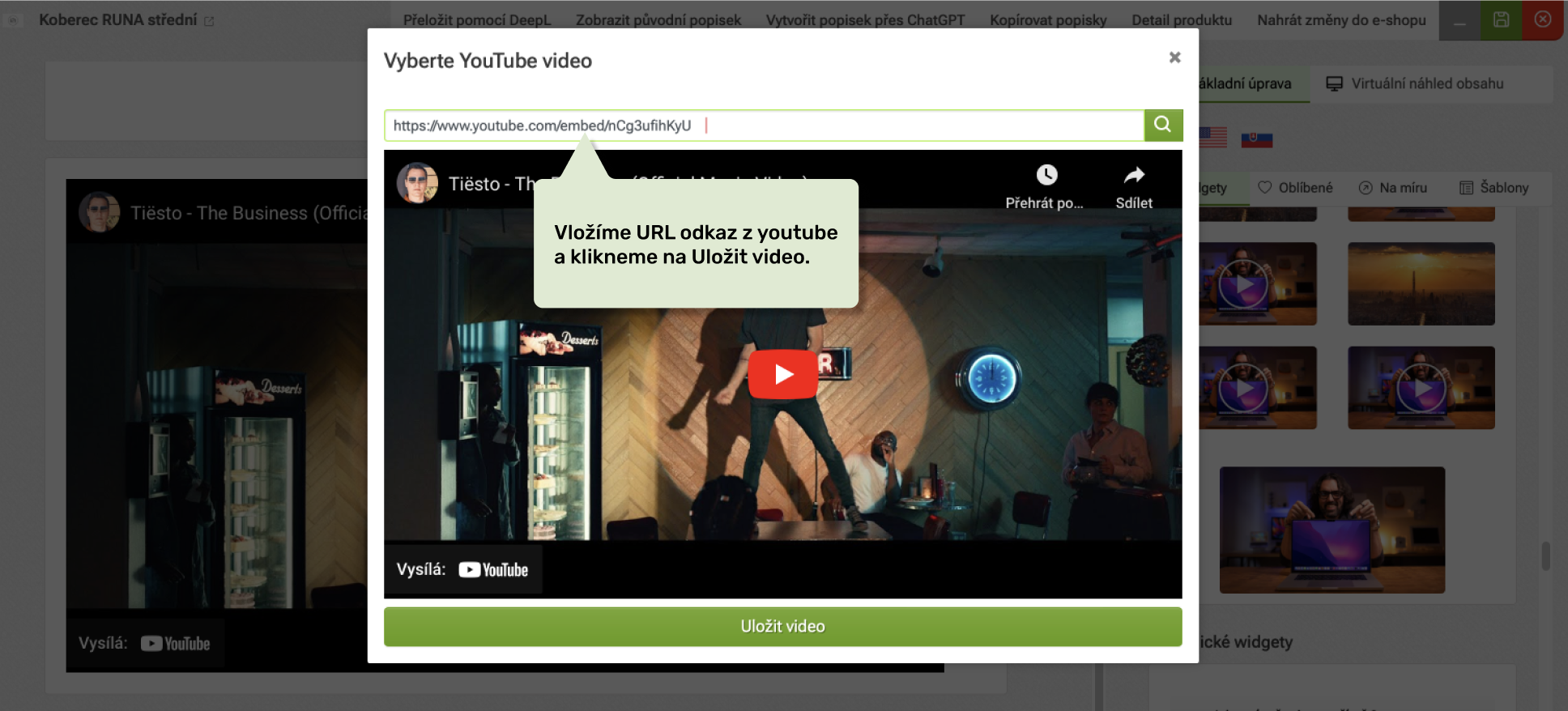
If you want to embed a YouTube video in your content, use the pre-made widgets. So we select the widget with the video and insert it into the content. We will then be presented with a button to select the video - when clicked, a modal window will appear with the option to insert a link from YouTube.
How do popular widgets work?
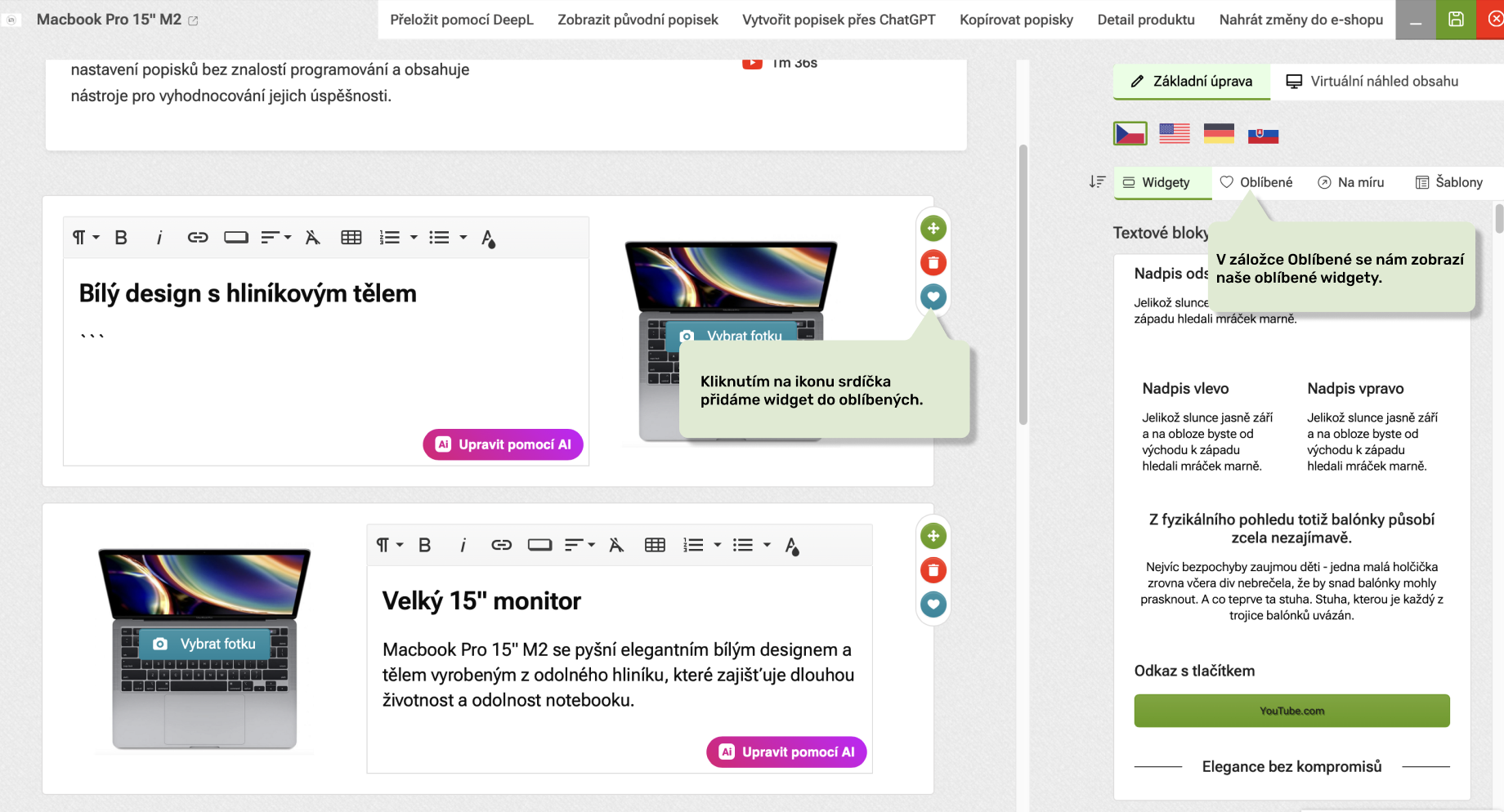
The favourite widgets feature in Pobo Page Builder allows us to save widgets with filled content and reuse them without having to retype text, upload an image, icon or video. A widget added to favorites can be used across product, category or blog descriptions.
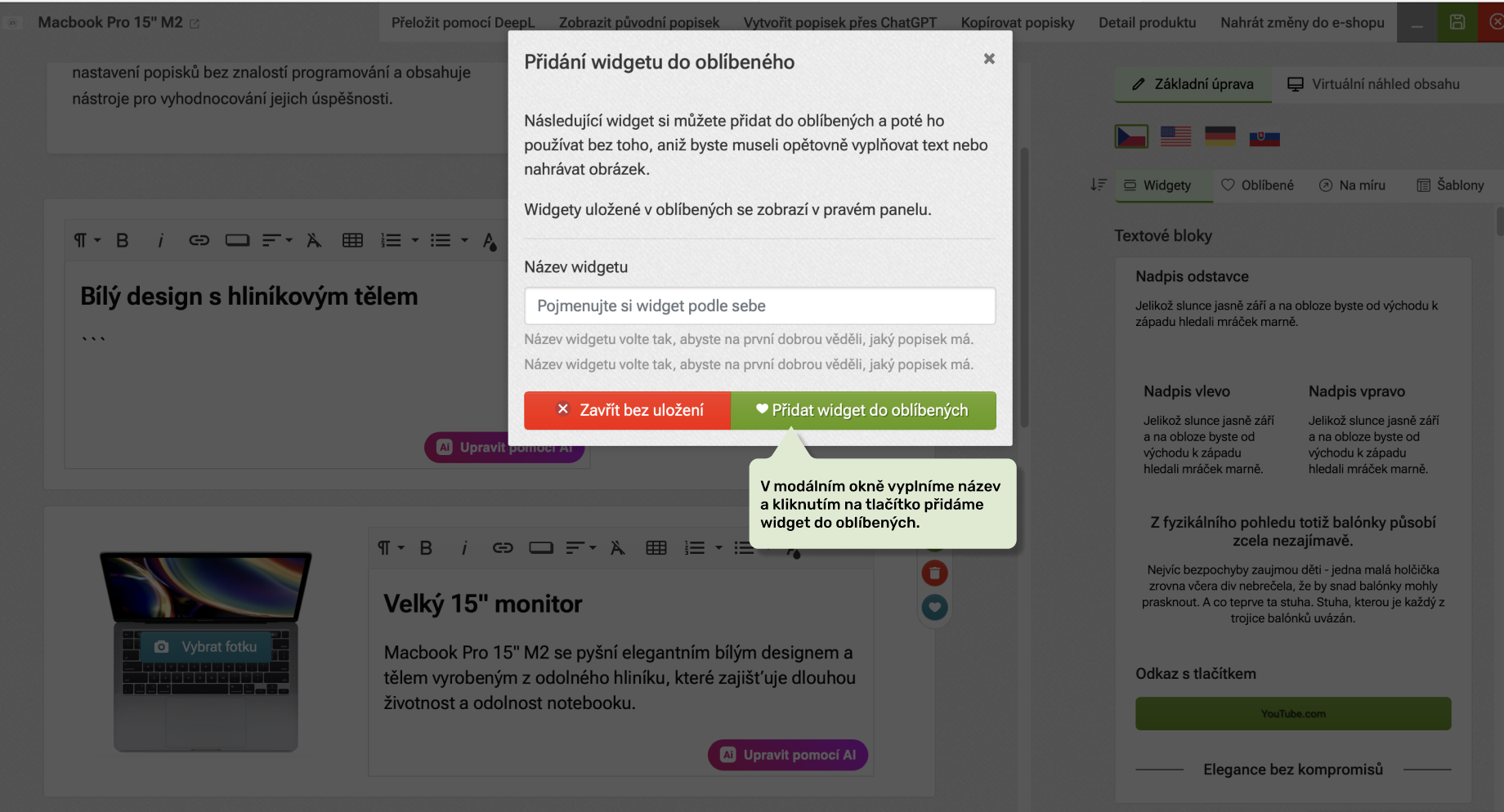
We add a widget to favorites by clicking on the heart icon in the editor. A modal window will then open in which we type the name of the favourite widget (we recommend choosing a unique name).
Widgets saved in favorites can be found under the Favorites tab, where we can also delete them if we don't use them.
How to copy labels and widgets?
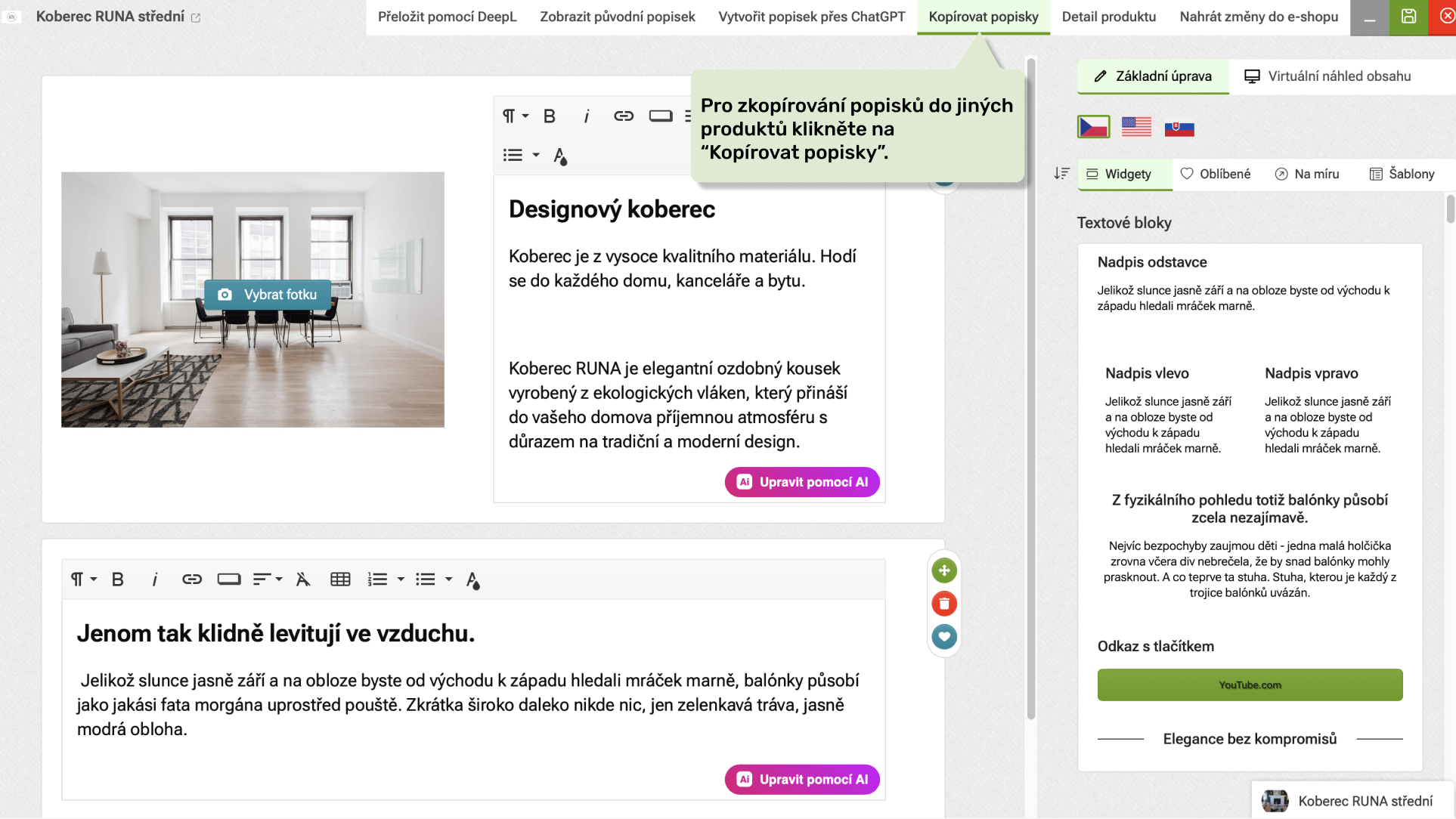
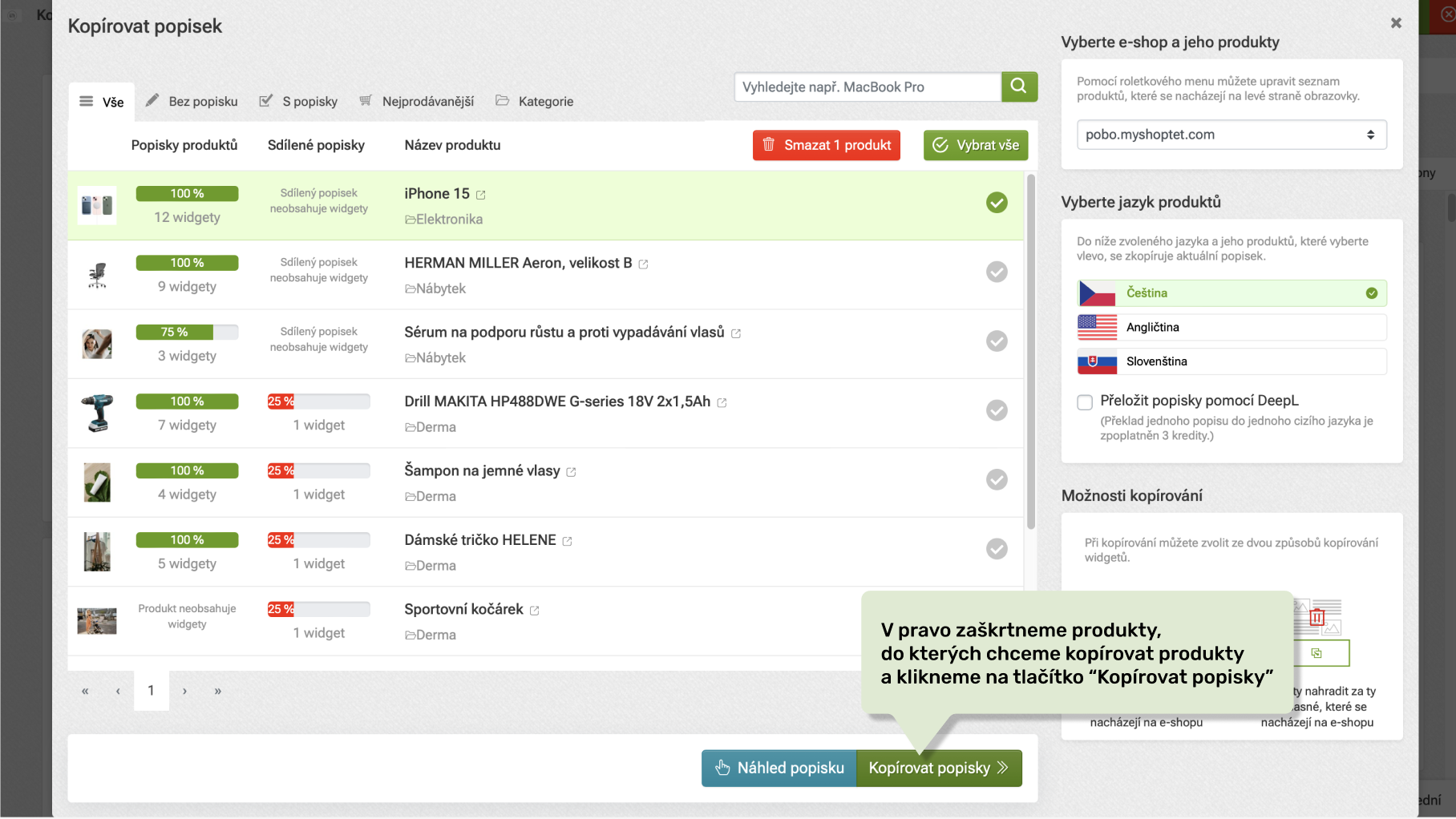
We can copy finished product labels to other products. To copy the labels, click on the Copy labels button in the top menu and a tab will open where you can select the products. Finally, click on the Copy content button. This will copy the labels to the selected products.
How to change the product name and short description in Pobo?
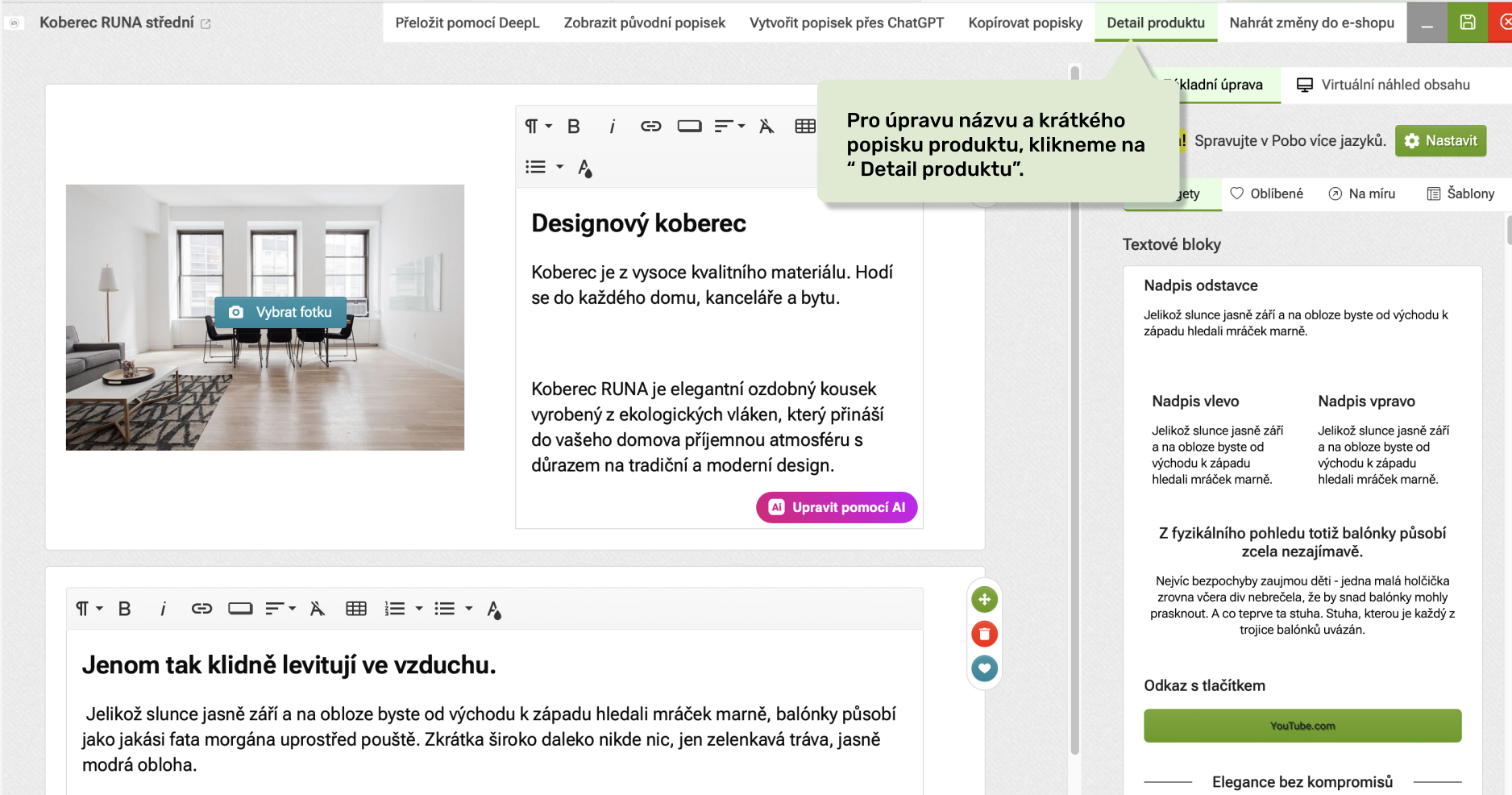
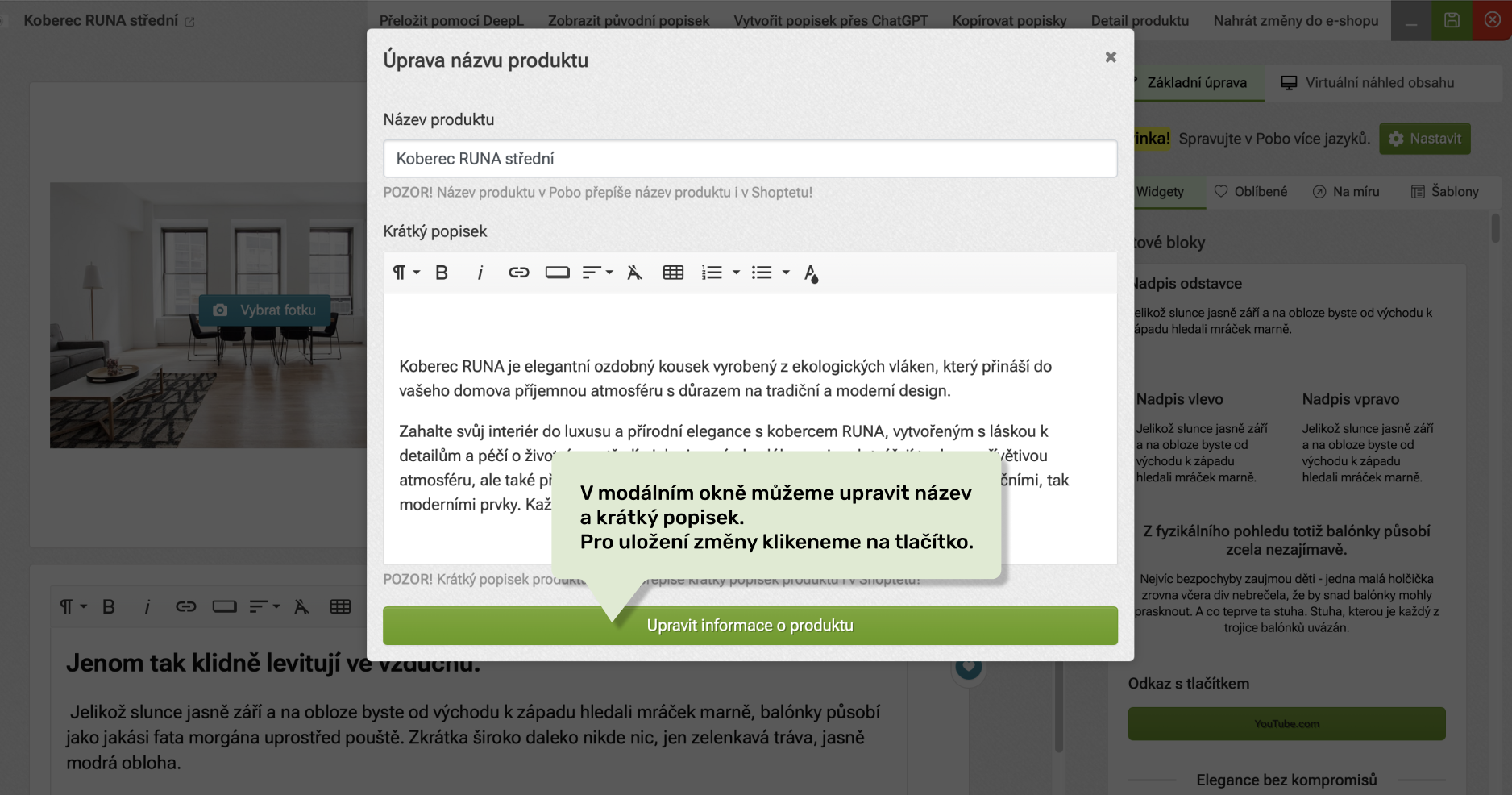
Pobo Page Builder allows you to change the product name and short description in addition to the descriptions. To edit this information, click on Product Detail in the top tab, then a form will open with the option to overwrite the short description and product name.
Important information:
- The short label and product name can only be edited if the export type is set to "Export long labels including product name and short label" in the export settings. If the export is set to long label only, the product name and short label will always be updated from the e-shop to Pobo Page Builder.
- Changing the title and short description is only possible if you have disabled the multilang function in the e-shop. If multilang is enabled, only the long description will be exported to the e-shop. You can enable or disable the multilang function in the multilang descriptions tab, which you can find in the menu by clicking on the name of your e-shop.
How do popular products and categories work?
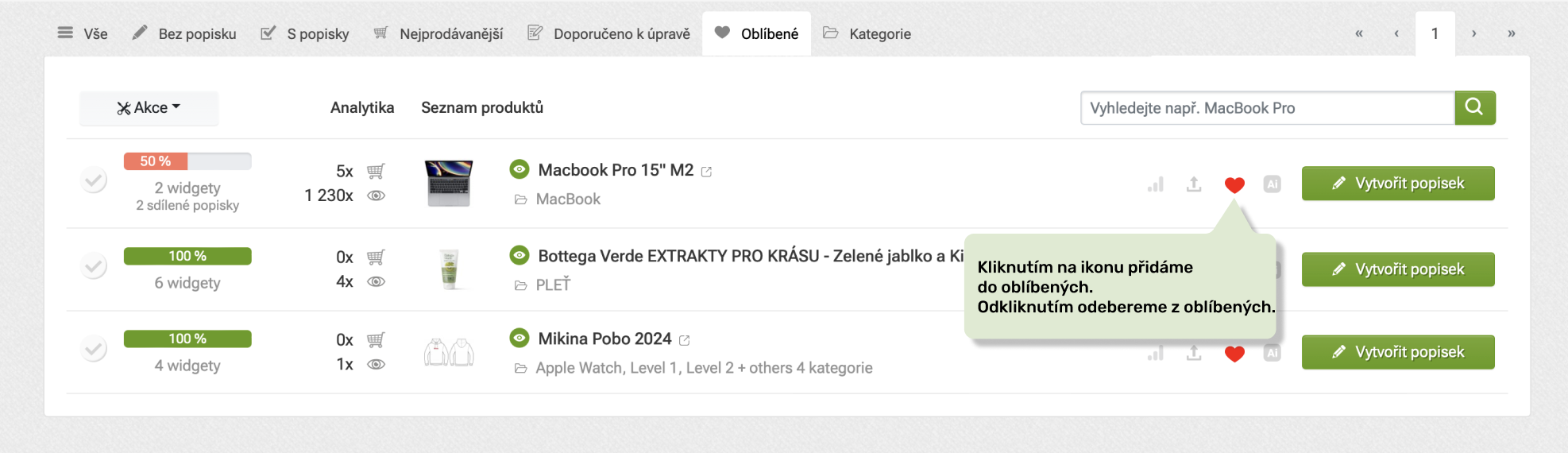
You can mark the product and category descriptions you create with a heart in the editor and save them to your favourites. This is useful, for example, for products that you frequently edit or plan to edit. You will find products or categories marked in this way filtered in the "Favorites" tab and you will have quicker access to them.
How to create an article for a blog or other site?
Content creation works the same for product descriptions, categories, blog articles and shared descriptions.
Watch a short instructional video on creating blog articles or creating a category page.
Quick navigation
- How to write descriptions for products, categories and blog?
- How to write the first caption?
- How to add content widgets?
- How to delete or move a widget?
- How to work with text?
- What should I do if I make a mistake?
- How to work with images and icons?
- How to edit the image?
- How to use the photo bank?
- How to add alternative text to an image?
- How do I insert a link into an image?
- How to add a YouTube video clip?
- How do popular widgets work?
- How to copy labels and widgets?
- How to change the product name and short description in Pobo?
- How do popular products and categories work?
- How to create an article for a blog or other site?

Thinking about Pobo? Let us show it to you.
Book a short 30-minute call where we'll show you how Pobo works, what it's good for, and how it can save you a lot of time and money.
Book a call


Book a call