Jak nainstalovat Pobo Page Builder na PrestaShop

« Back to integrations

How to Install Pobo Page Builder on PrestaShop

Simple guide for installing the Pobo Page Builder editor for the PrestaShop platform.


Create an Account

To install Pobo Page Builder on Upgates, the first step is to create an account. Open the page client.pobo.space and click on the tab “Create Account”.  

Create Account for PrestaShop

Fill in the Registration Form

Fill in the form:

  1. Your email
  2. Password 
  3. Confirm password
  4. URL of your e-shop (e.g.: https://www.myeshop.com/)
  5. Select platform “PrestaShop

Then submit the form and the system will log you in automatically. 

Create an API Web Service Key

Log into your shop's administration in PrestaShop, navigate to the section “Tools” → “Web Services” and click on the button “Add New Web Service Key”.


Then fill in:

  • Name the key as “Pobo Page Builder
  • And enable “

In the following table select:

Resource
All
View (GET)
Edit (PUT)
Add (POST)
Patch (PATCH)
DeletePreview (HEAD)
products
 ❌
 ✅
 ✅
 ✅
 ✅
 ❌
 ✅
manufacturers
 ❌
 ✅
 ✅
 ✅
 ✅
 ❌
 ✅
categories

 ✅
 ✅
 ✅
 ✅

 ✅
combinations

 ✅


 ✅
product_features

 ✅


 ✅
product_feature_values

 ✅


 ✅
product_option_values

 ✅


 ✅
shops

 ✅


 ✅
configurations

 ✅


 ✅
images

 ✅


 ✅
languages

 ✅


 ✅

Then save at the bottom and the API key will appear, which you should copy to clipboard.

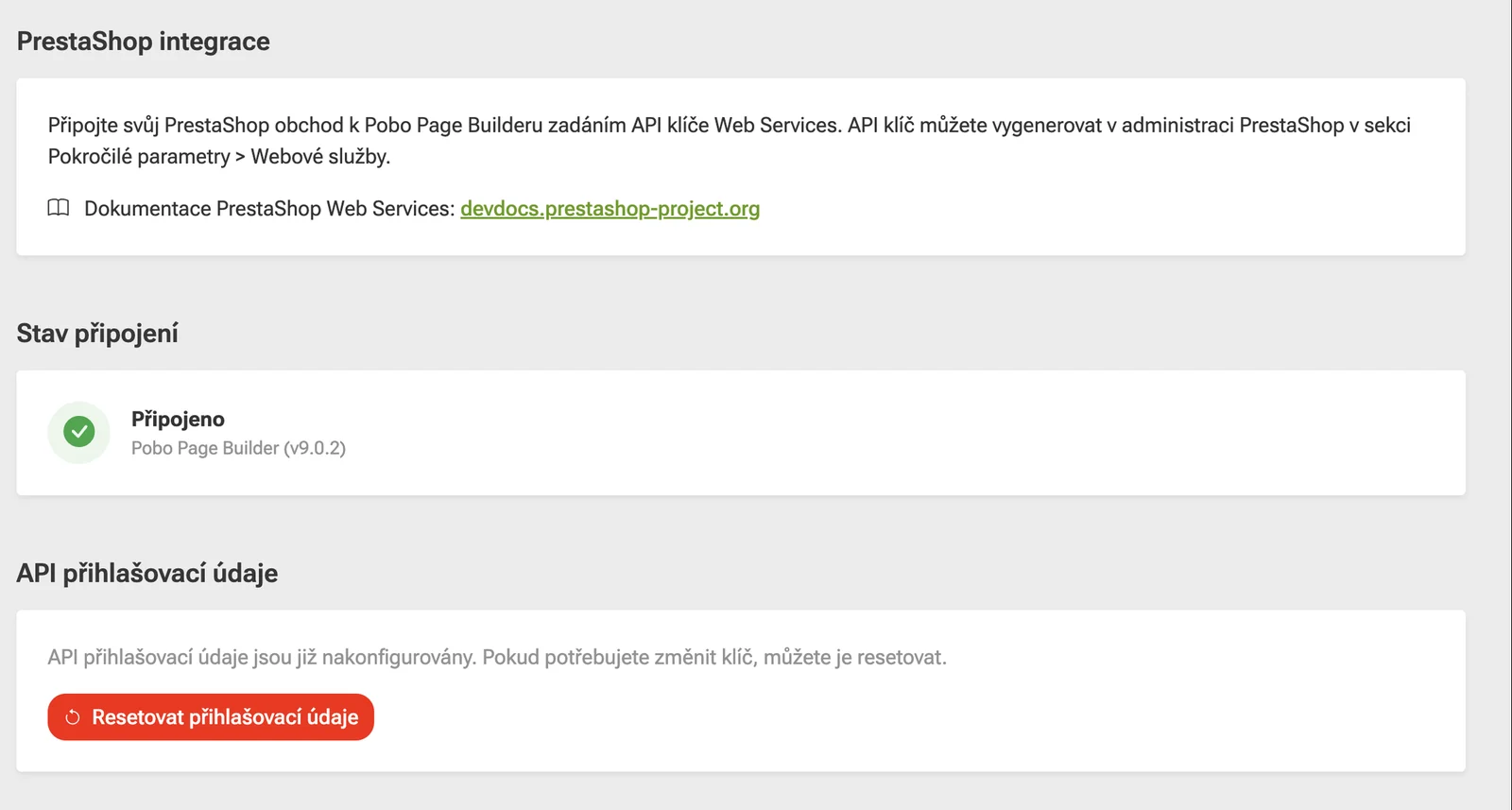
Then go to the page https://client.pobo.space/merchant/integration/prestashop and in the bottom part, insert the API key into the form.

After successful saving, an informational message about the connection will appear.

Pobo

Thinking about Pobo? Let us show it to you.

Book a short 30-minute call where we'll show you how Pobo works, what it's good for, and how it can save you a lot of time and money.

Book a call