Uploading descriptions from Pobo Page Builder to e-shop

Export and upload settings to the e-shop

Description of export mode settings and instructions for uploading labels.

Export mode settings

Pobo Page Builder allows you to set several export modes for your labels depending on how you work with the data.

To set it up, click on the top right of the menu on your store URL.

Select the"Settings" link in the menu and click on it.

Click on"Export Settings" in the left menu.

You will then be presented with a form in which you can choose from three options:

  1. Export long label only - this option means that only the long label will always be exported from Pobo Page Builder to the e-shop, while the product name and short label will always be downloaded from the e-shop to Pobo Page Builder when imported (you edit the product name and short label in Shoptet)
  2. Export long labels including product name and short label - if this option is selected, long and short labels including product name will always be exported from Pobo Page Builder to the e-shop. You manage the long short description including the product name in Pobo Page Builder.


Exporting (uploading) product descriptions to the e-shop

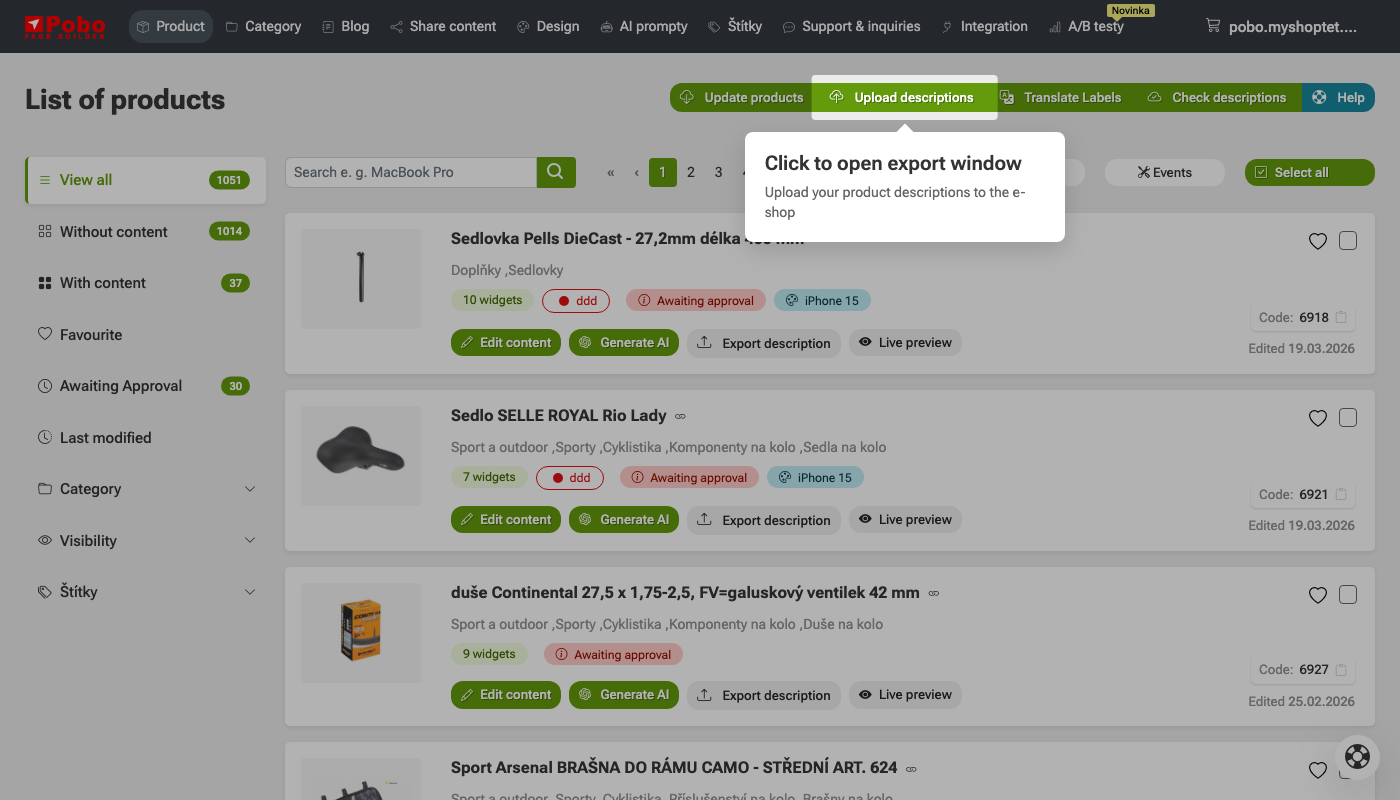
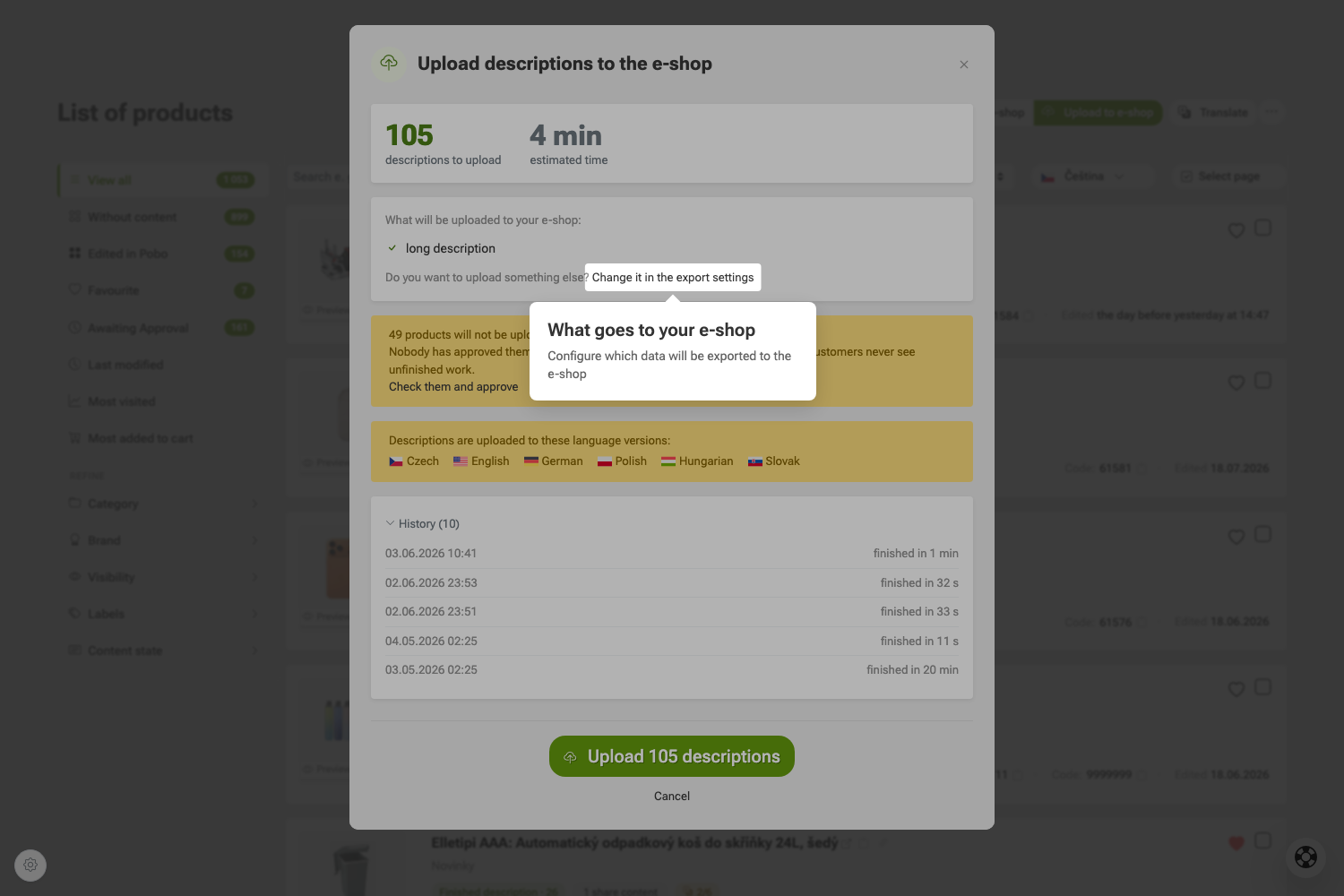
To upload product descriptions to the e-shop, click on"Upload descriptions to e-shop".

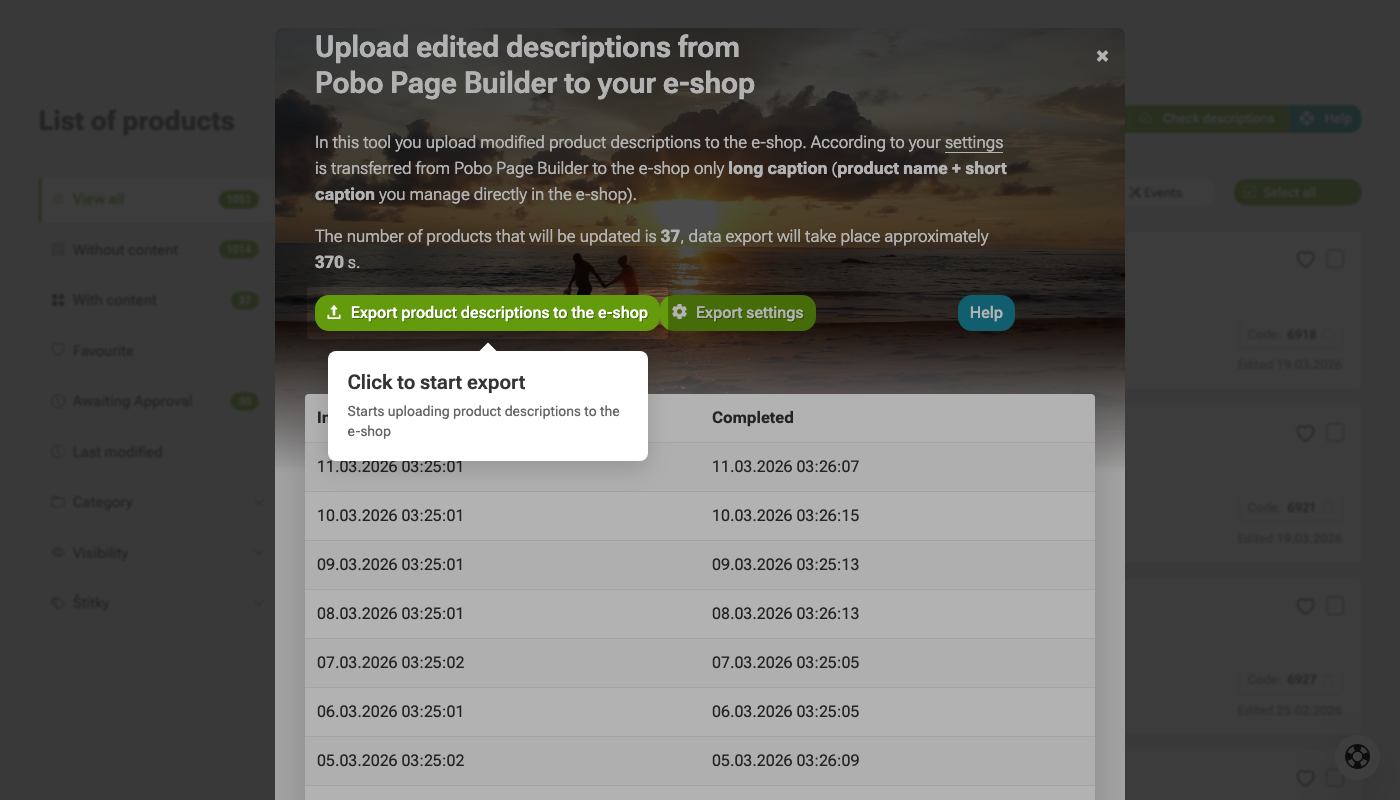
Then a modal window will open, in which you click on"Upload labels to e-shop". Uploading may take a longer time if you have many customized products.

Pobo

Thinking about Pobo? Let us show it to you.

Book a short 30-minute call where we'll show you how Pobo works, what it's good for, and how it can save you a lot of time and money.

Book a call