


 Book a call
How to add users and switch between e-shops?
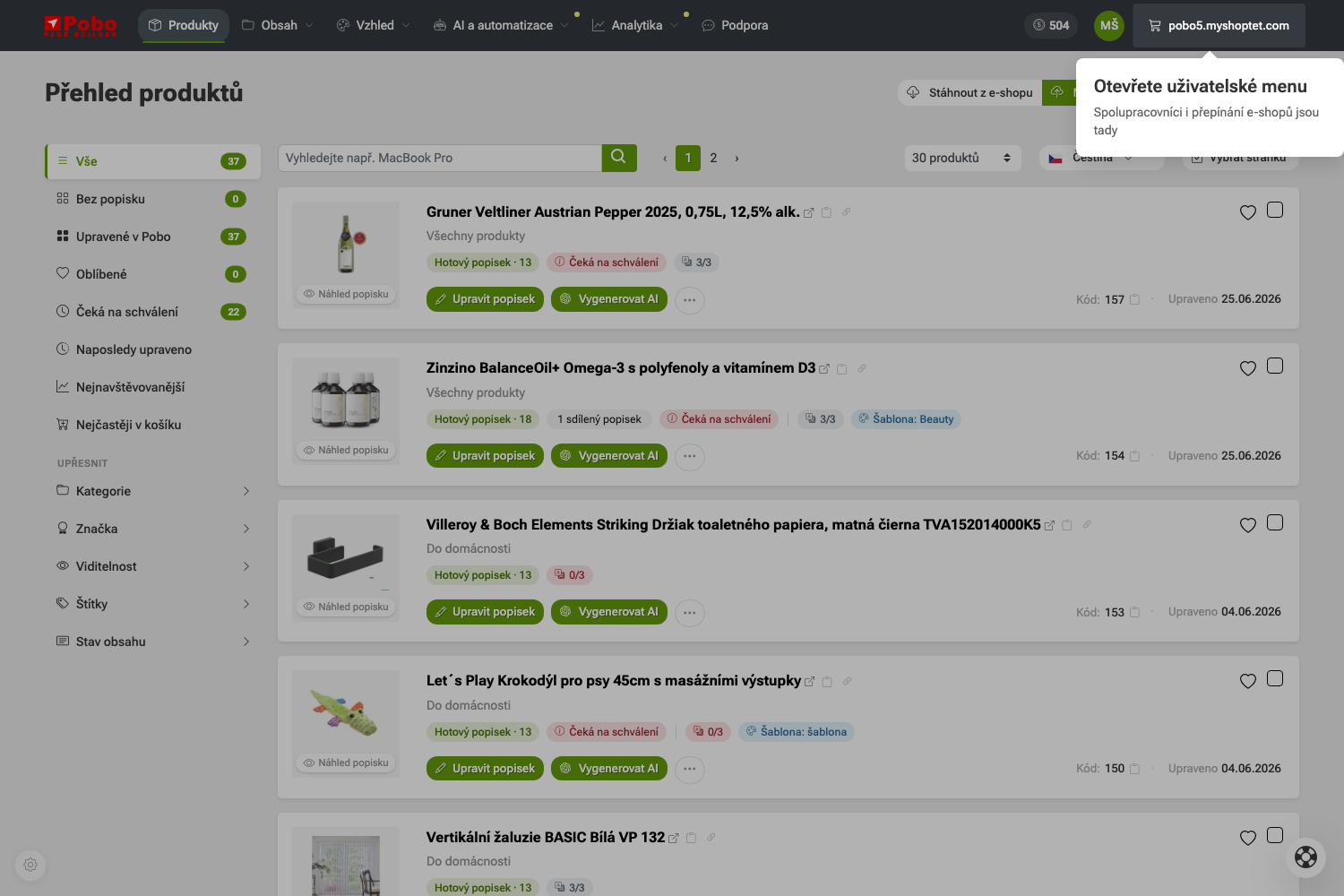 1. krok: Uživatelské menu najdete v pravém horním rohu.
 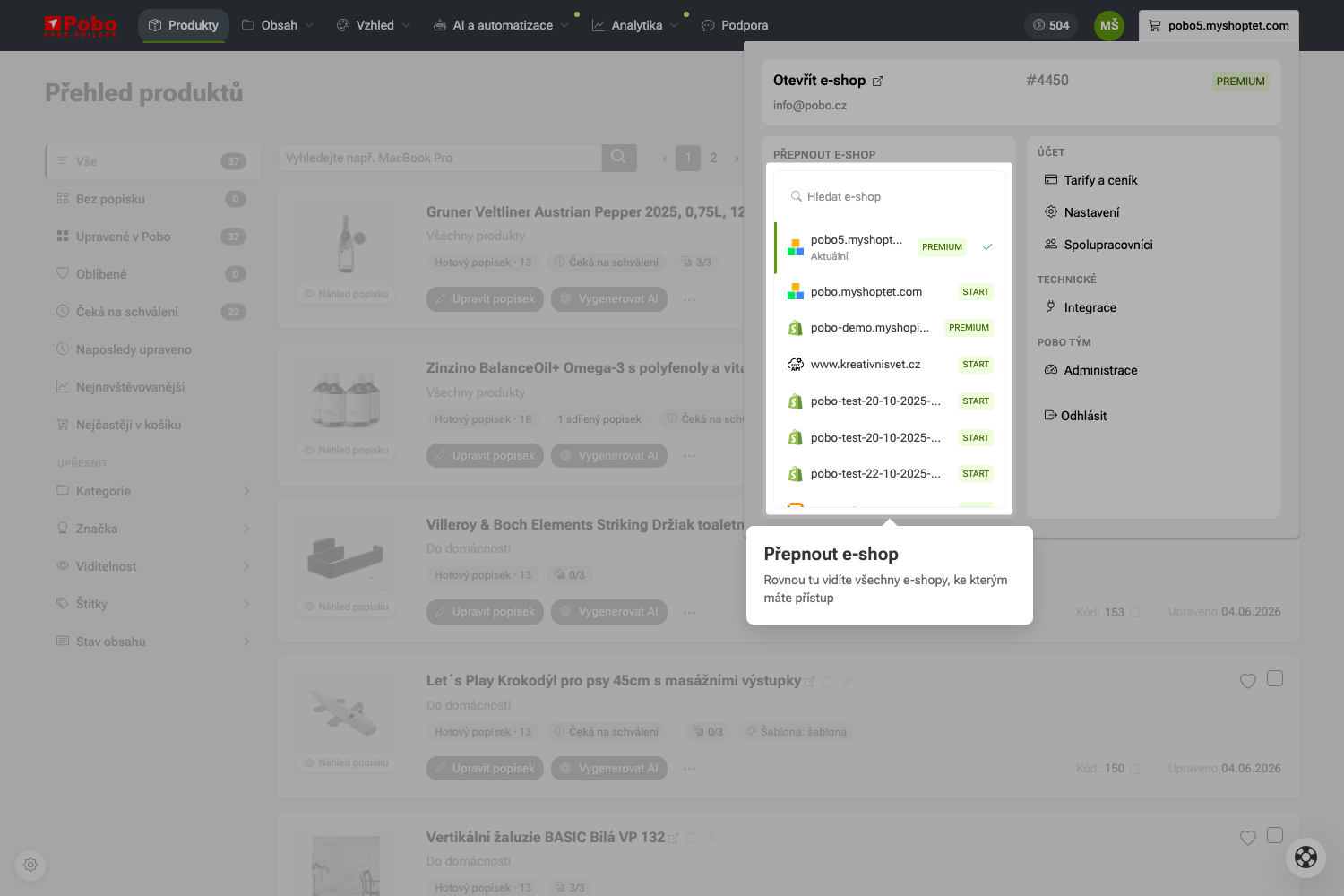 2. krok: Seznam e-shopů, mezi kterými přepínáte.
 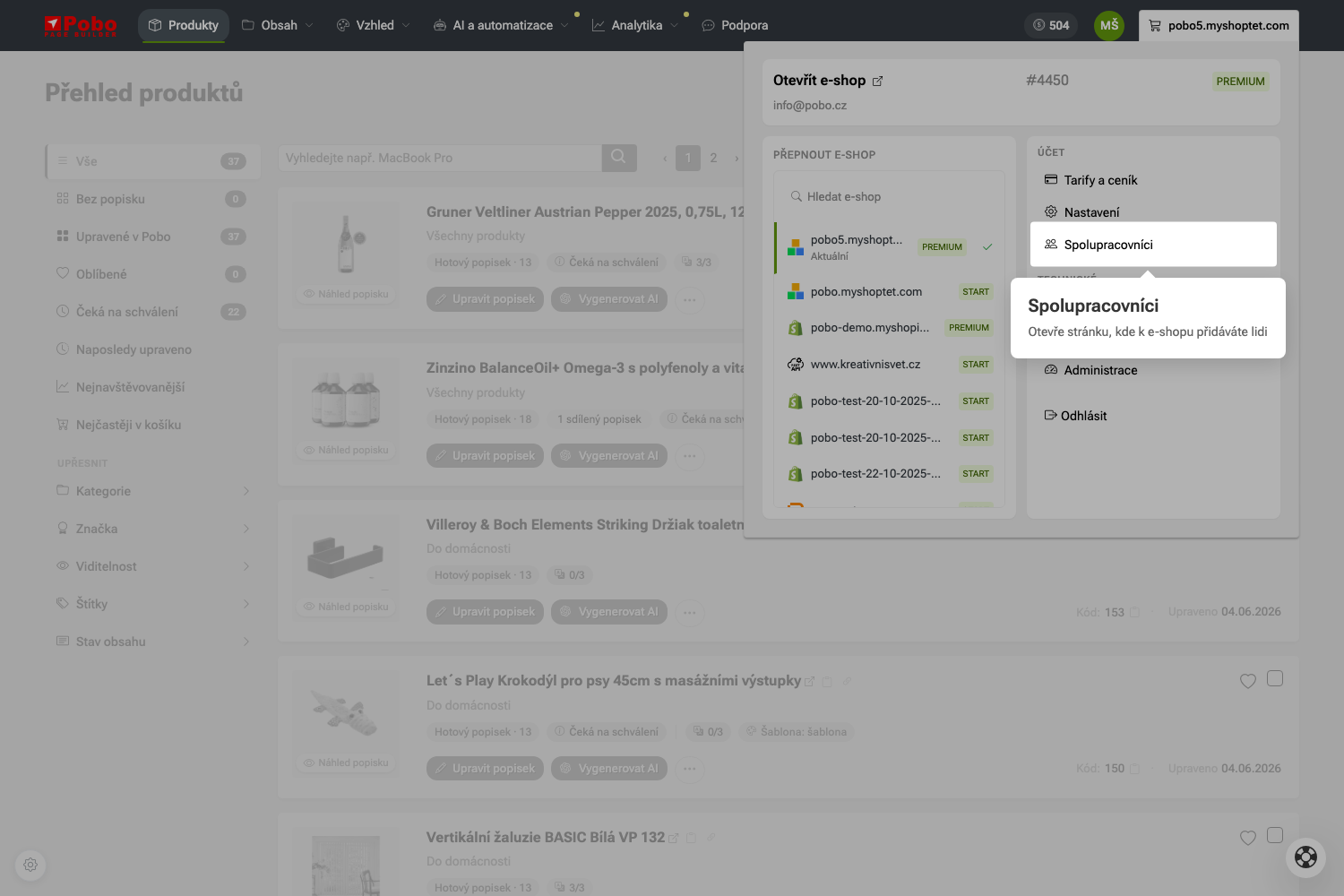 3. krok: Odkaz v uživatelském menu a táž stránka v navigaci nastavení.
 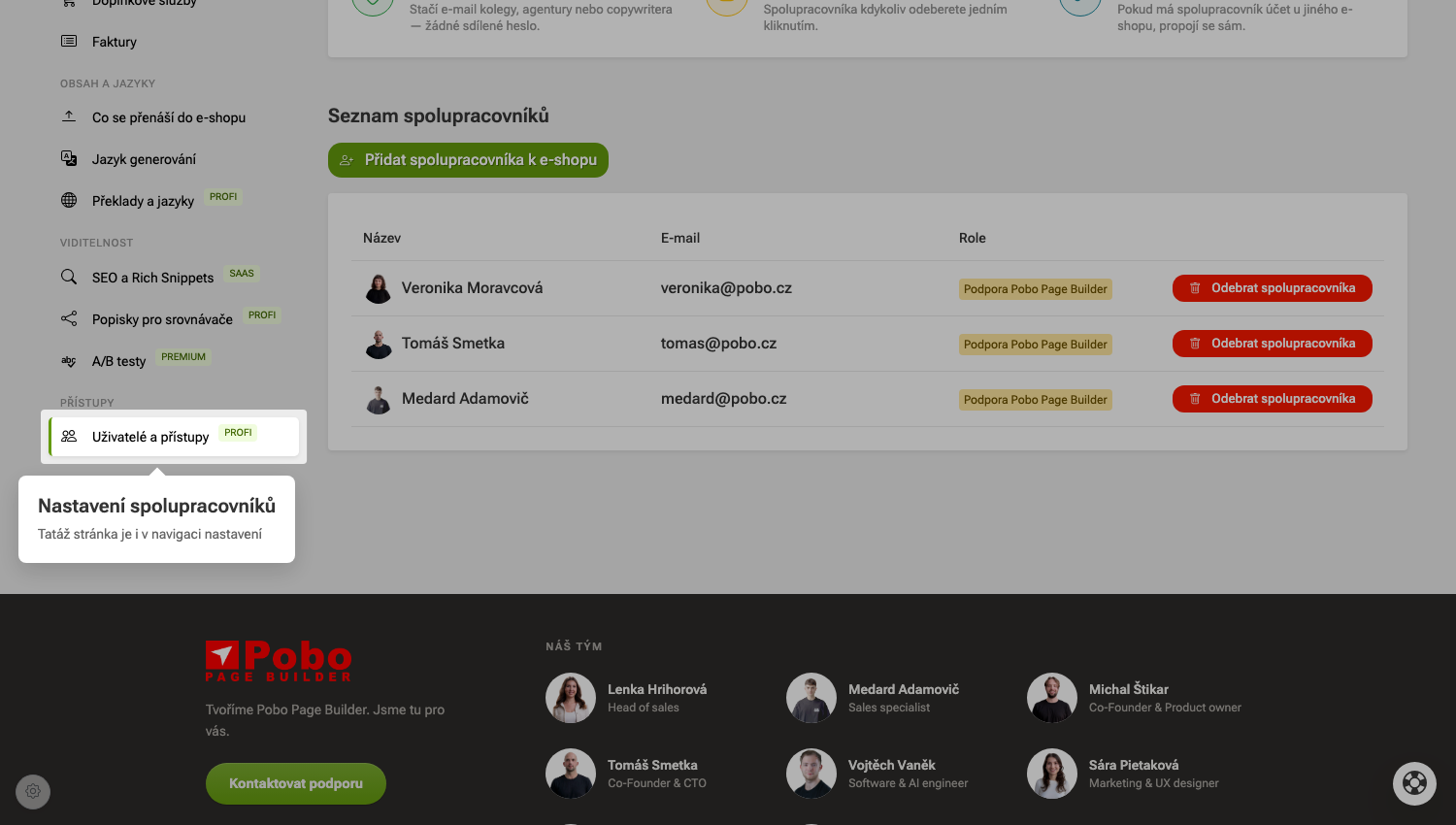 3. krok: Odkaz v uživatelském menu a táž stránka v navigaci nastavení.
 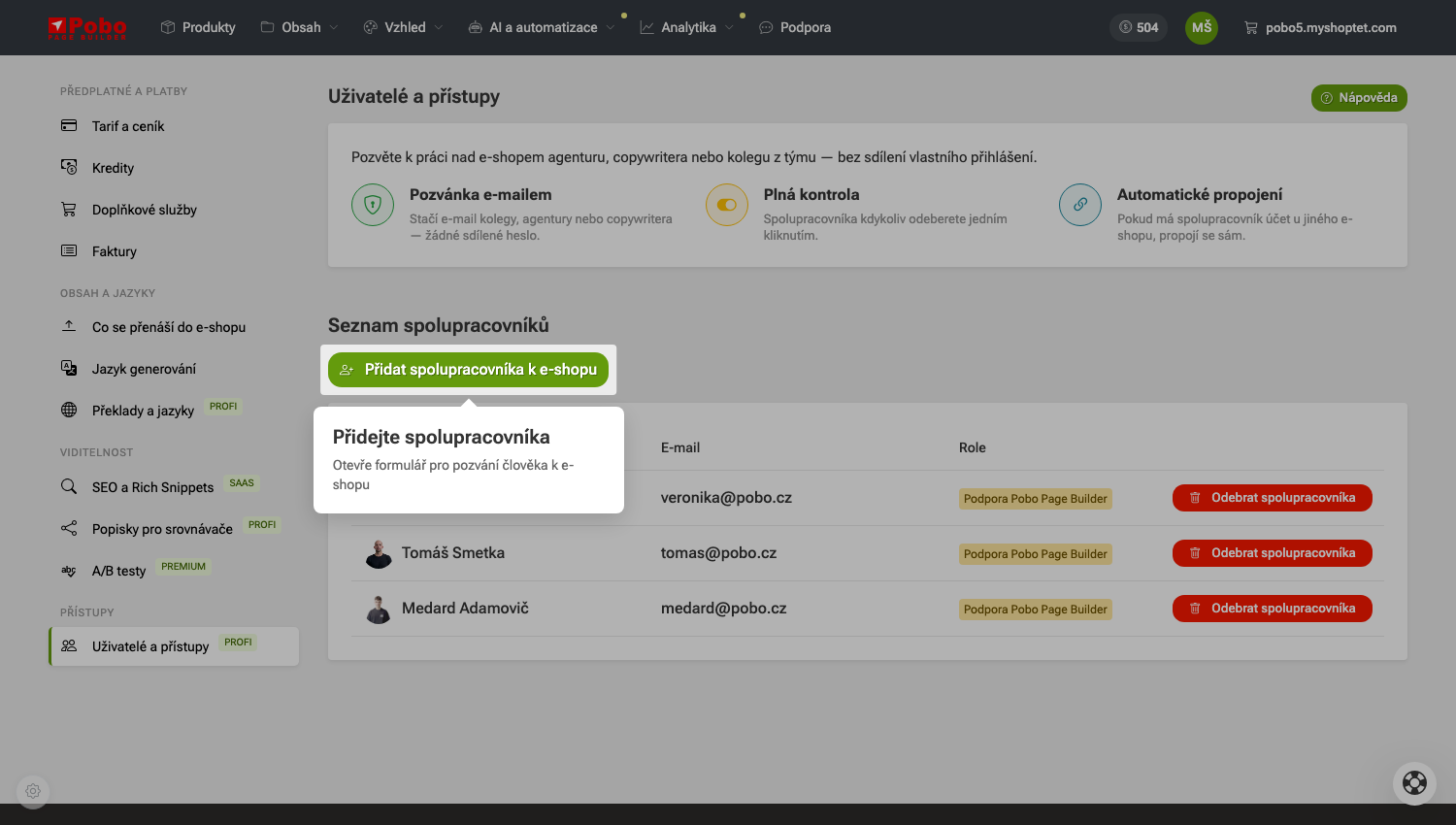 4. krok: Tlačítko pro přidání a formulář s e-mailovou adresou.
 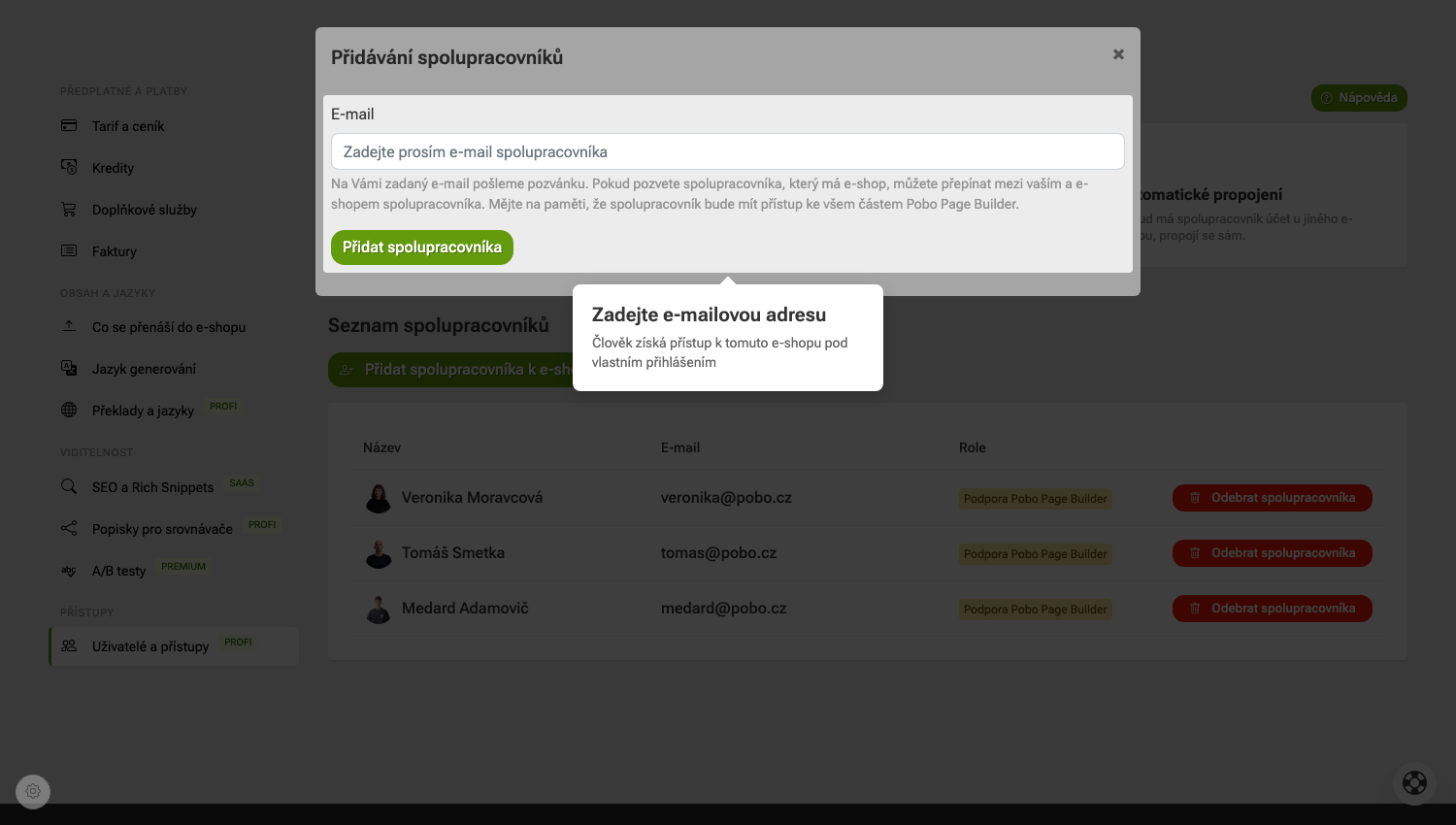 4. krok: Tlačítko pro přidání a formulář s e-mailovou adresou.
 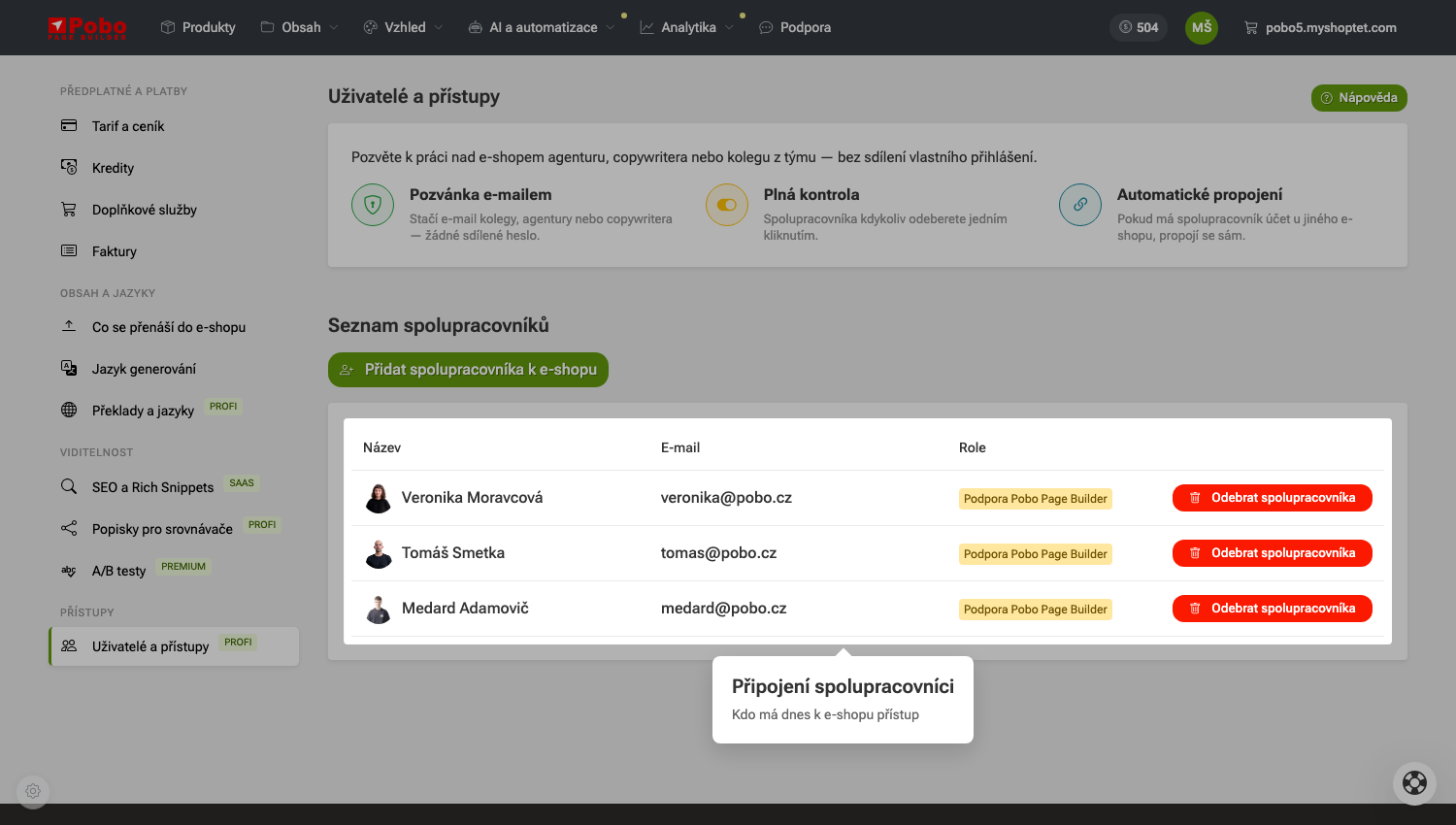 5. krok: Přehled lidí, kteří mají k e-shopu přístup.
 Quick navigation
- Jak přidat uživatele a přepínat mezi e-shopy?
- Užijte si léto
- 1. Otevřete uživatelské menu
- 2. Přepněte mezi e-shopy
- 3. Otevřete spolupracovníky
- 4. Přidejte spolupracovníka
- 5. Zkontrolujte, kdo má přístup
- Co se stane, když kliknu na Přidat spolupracovníka?
- Uvidí spolupracovník úplně všechno?
- Proč se mi v přepínači objevil e-shop spolupracovníka?

Thinking about Pobo? Let us show it to you.
Book a 30-minute call with Lenka. She will show you how Pobo works, what it is good for and how much writing it takes off your hands.
Book a call