Jak zrcadlit popisky mezi e-shopy s překlady
How to mirror descriptions between e-shops with translations

Do you have the same products in multiple e-shops? With mirroring, you write the description once in the source e-shop, and Pobo automatically keeps it up to date in the target e-shop — including later edits.

Language versions are also part of the setup: you specify which source language should be transferred to which target language.

1. Open mirroring and connect the e-shops

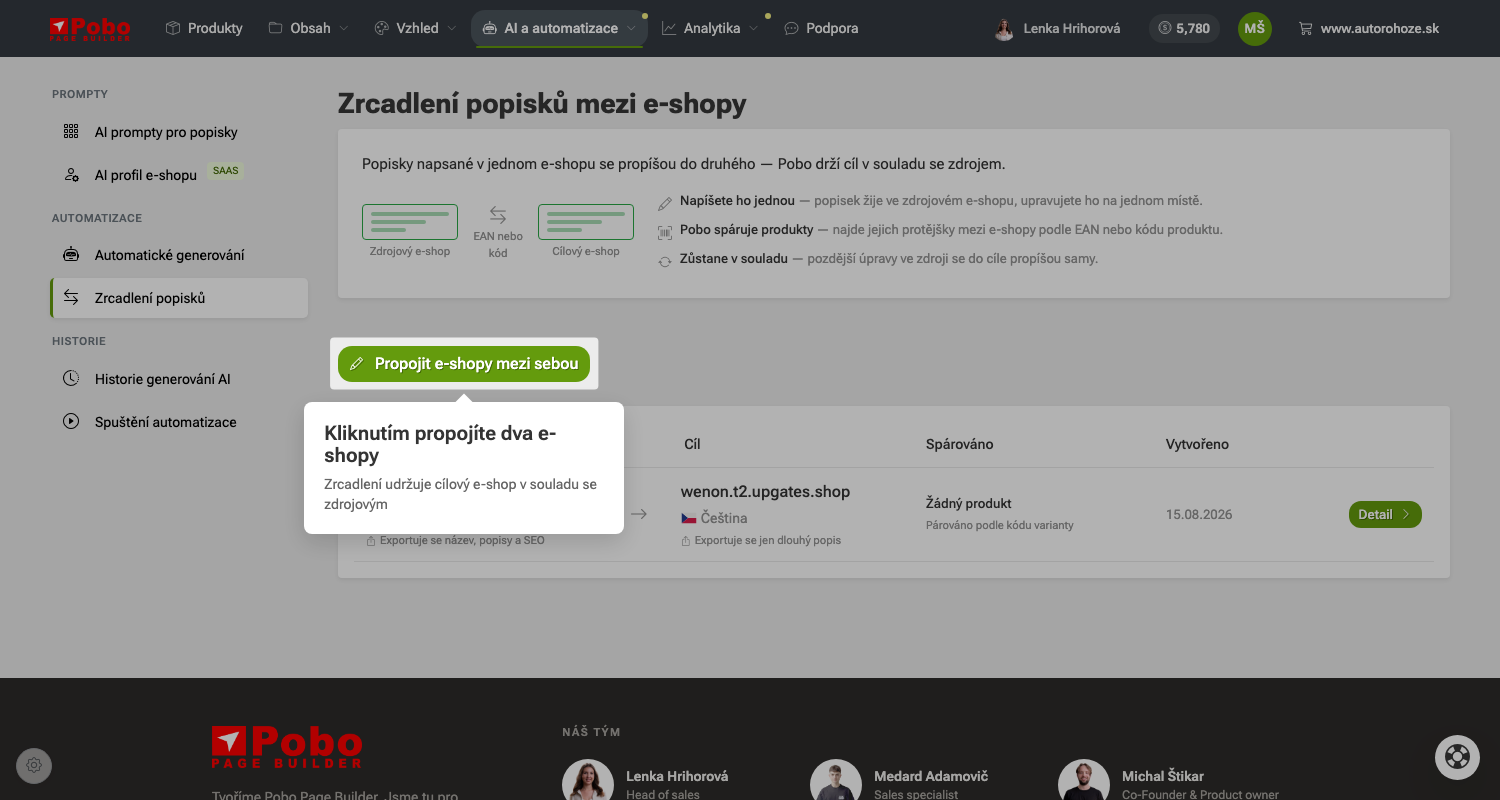
In the AI and automation section, open Description mirroring and click Connect e-shops.

The list shows the mirroring direction for each rule, the number of matched products, and what is transferred to the target — depending on the export settings, this can be just the long description, or also the name and SEO.

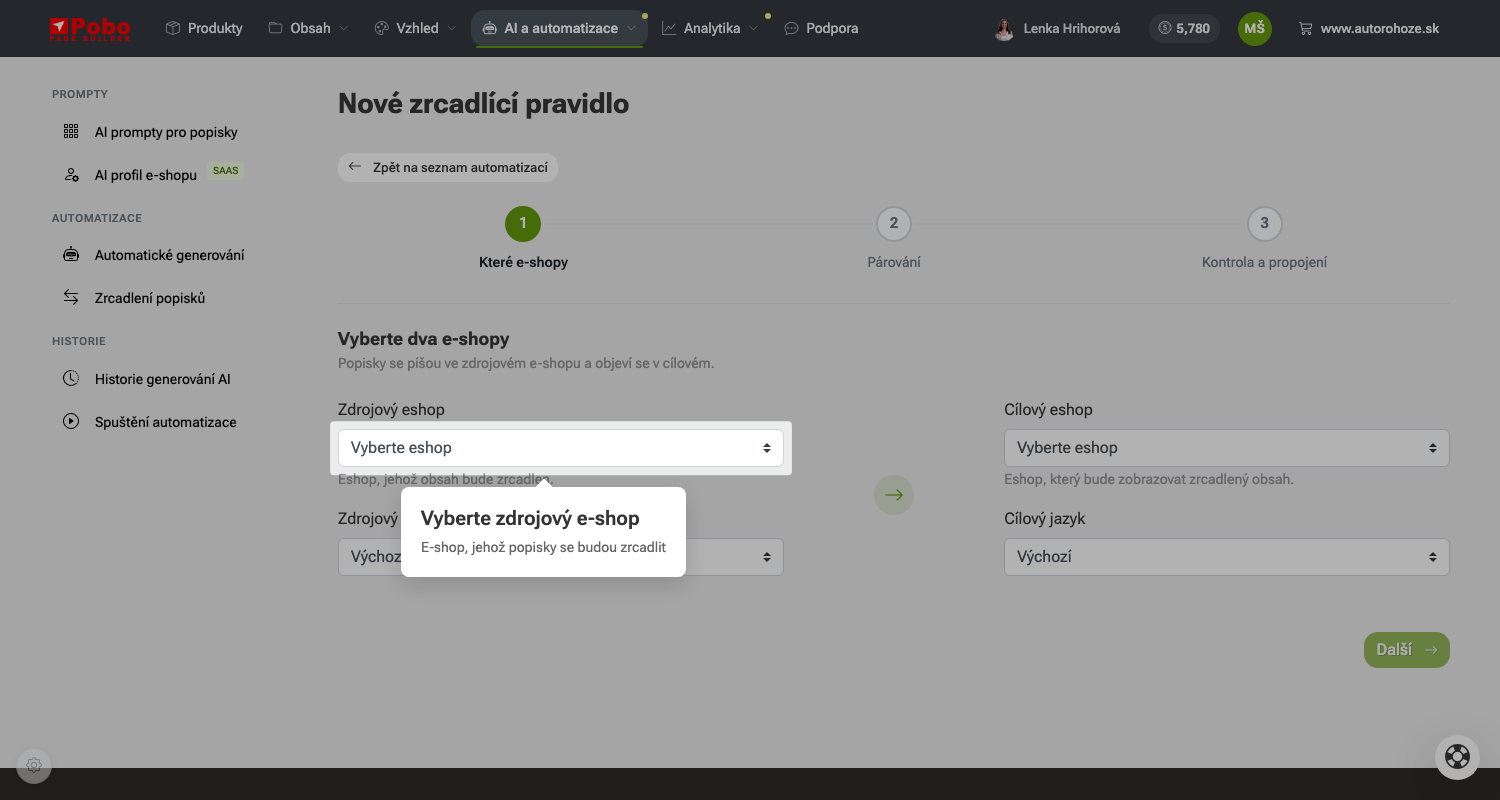
2. Select the source e-shop and language

The source is the e-shop where you write and edit descriptions. You also select the source language — that is, which language version of the description you want to mirror.

Pobo will later show how many matched products actually have content filled in in this language and how many are missing it.

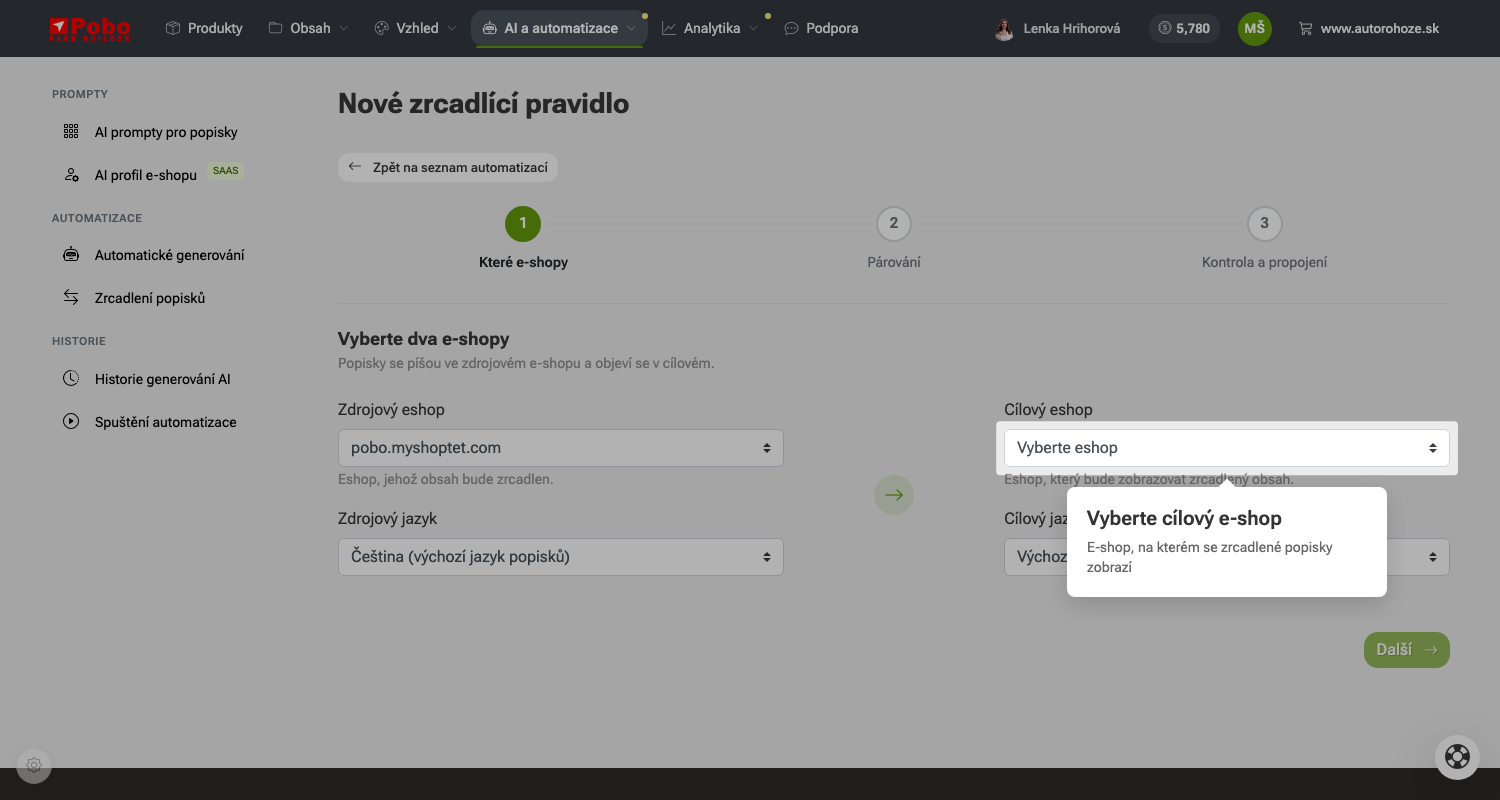
3. Select the target e-shop and language

The target is the e-shop where the mirrored descriptions will appear. You select the target language into which the content is transferred.

Each target e-shop + language pair belongs to exactly one rule. If you want to fill two language versions of the target, create two rules.

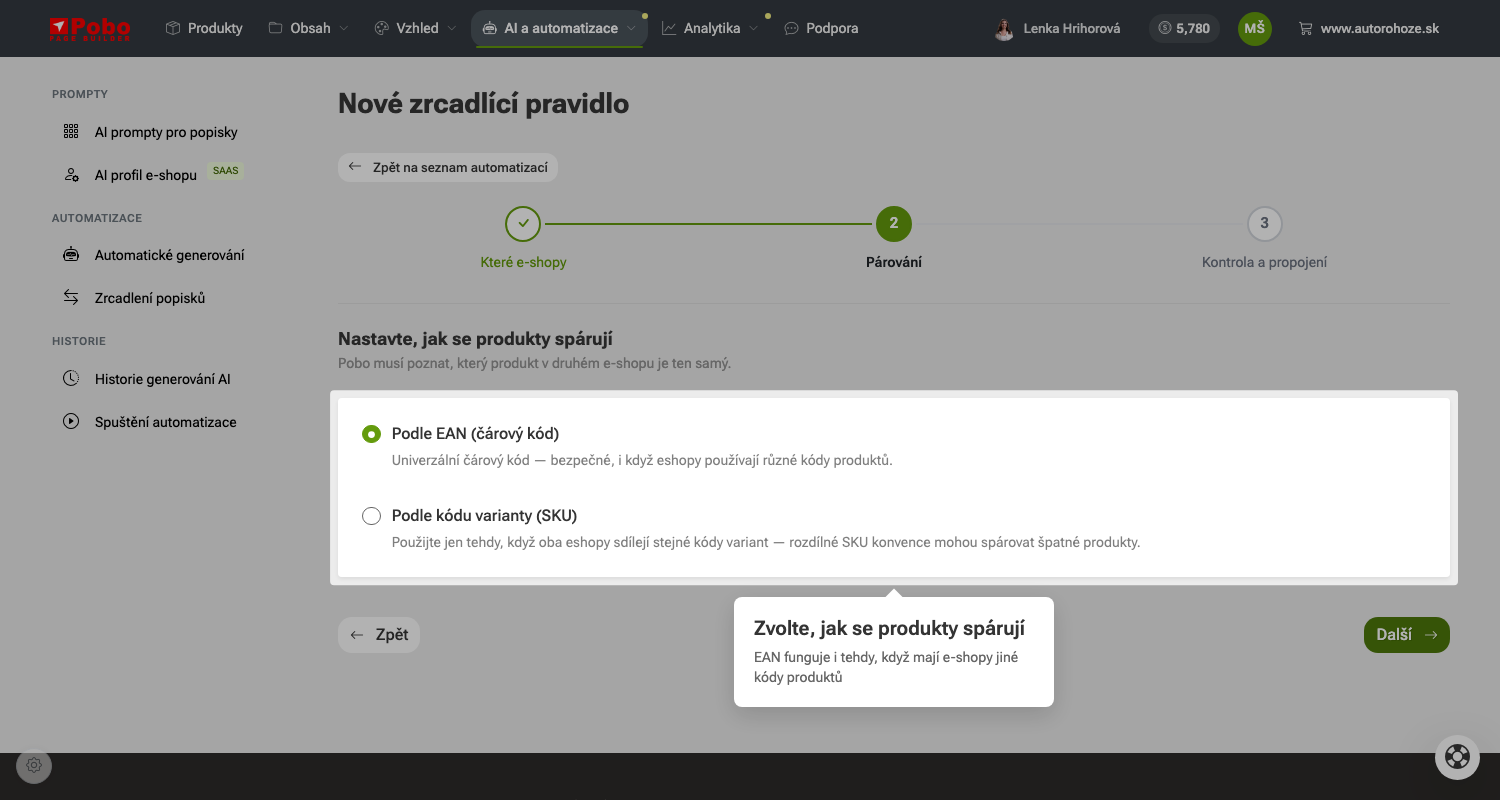
4. Choose how products are matched

Pobo needs to identify which product in the other e-shop is the same one. By EAN is the default and safest option — the barcode is universal, so it also works when the e-shops use different product codes.

Use By variant code (SKU) only when both e-shops share the same code convention. Different conventions could result in the wrong products being matched.

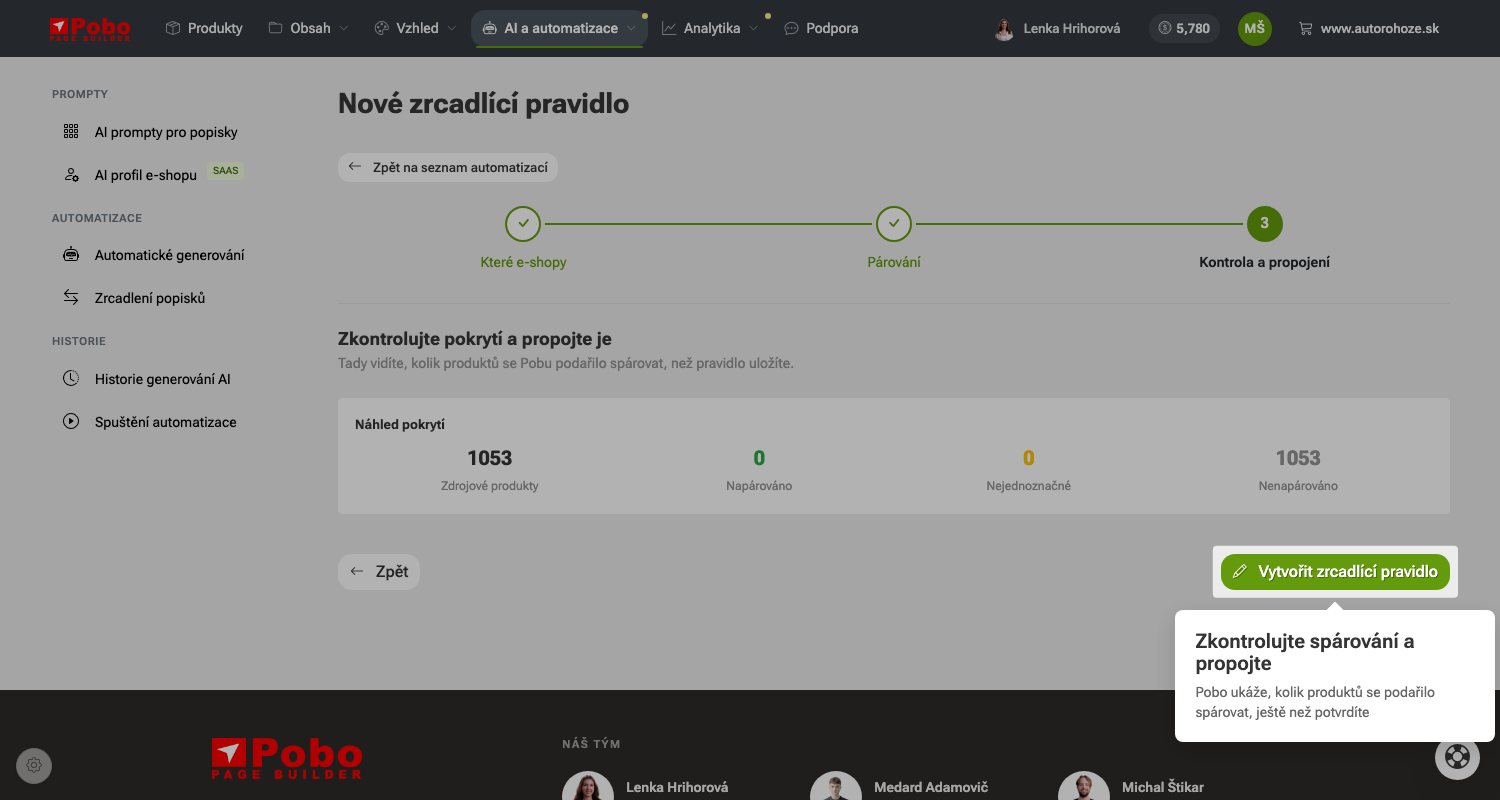
5. Check the coverage and connect

Before you save the rule, Pobo calculates a coverage preview: how many source products were successfully matched, how many are ambiguous, and how many remain unmatched.

If only a few are matched, EANs are usually missing or the codes differ — go back one step and try the other strategy. Only then click Create mirroring rule.

6. Start matching

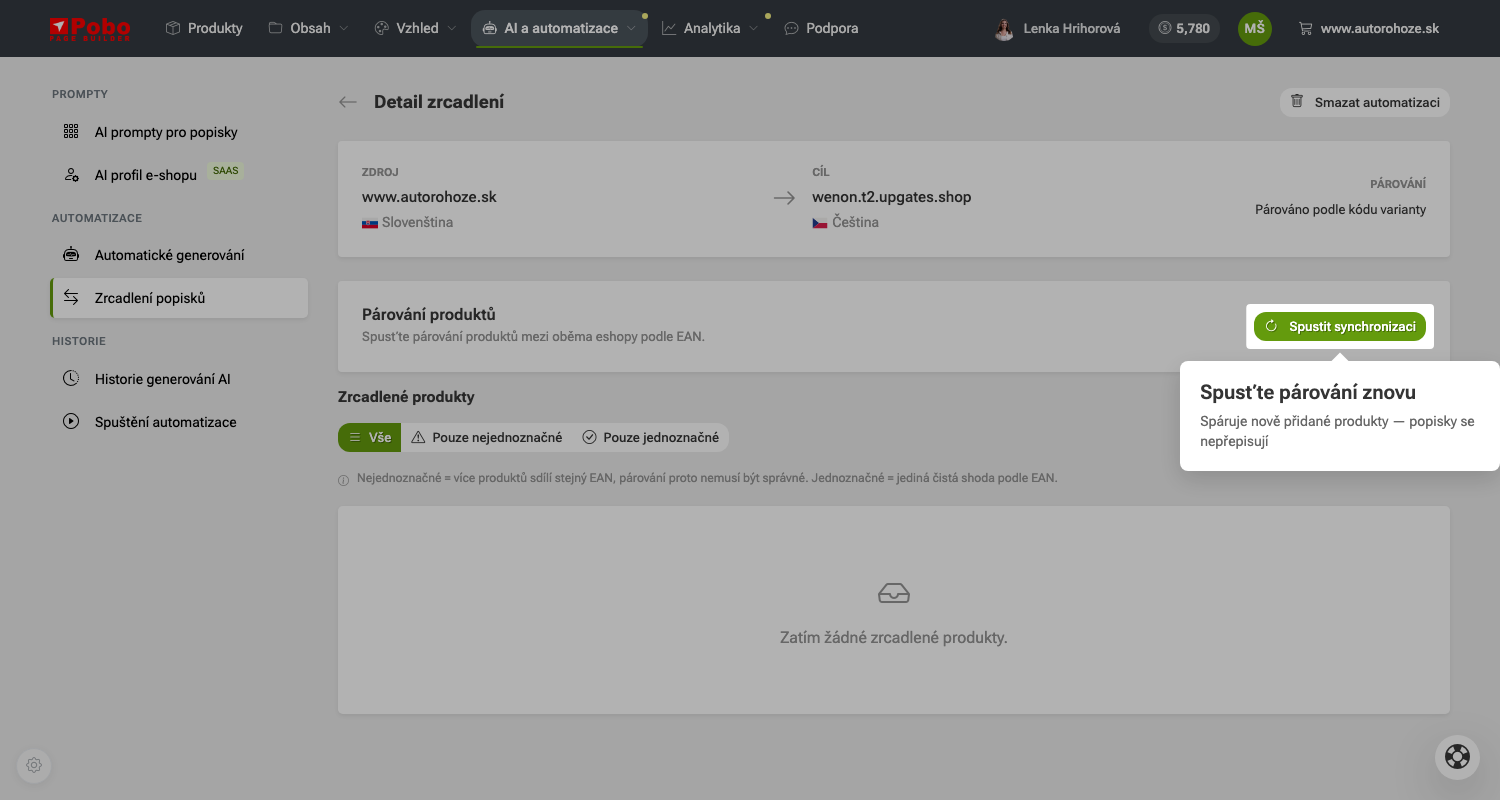
Saving the rule is not the end of the process. Pobo will take you to the mirroring details, where there are no matched products yet — counterparts will only start being searched for after you click Start synchronization.

Matching runs in the background and continuously shows how many products out of the total have been processed and how many are ambiguous. The button is inactive while the process is running, so repeated clicks will not start another run.

What changes after connecting

Mirrored products can no longer be edited in the target e-shop — instead of fields, the editor displays a warning that the content is managed in the source. This is intentional: otherwise, your changes would be lost the next time the content is compared with the source.

This is not a one-time copy. Later edits in the source e-shop continue to be transferred to the target automatically.

What happens when I click Create mirroring rule?

The rule is saved and its details are opened. However, the products have not been matched yet — matching starts only after clicking the next button in the details.

Why does a plan offer open instead of saving?

Mirroring is included in the SaaS plan. On a lower-tier plan, the rule will not be saved, and Pobo will instead show what the plan includes.

What happens when I click Start synchronization?

Matching starts in the background and its progress is displayed. Descriptions are not overwritten — the process only searches for product counterparts by EAN or variant code.

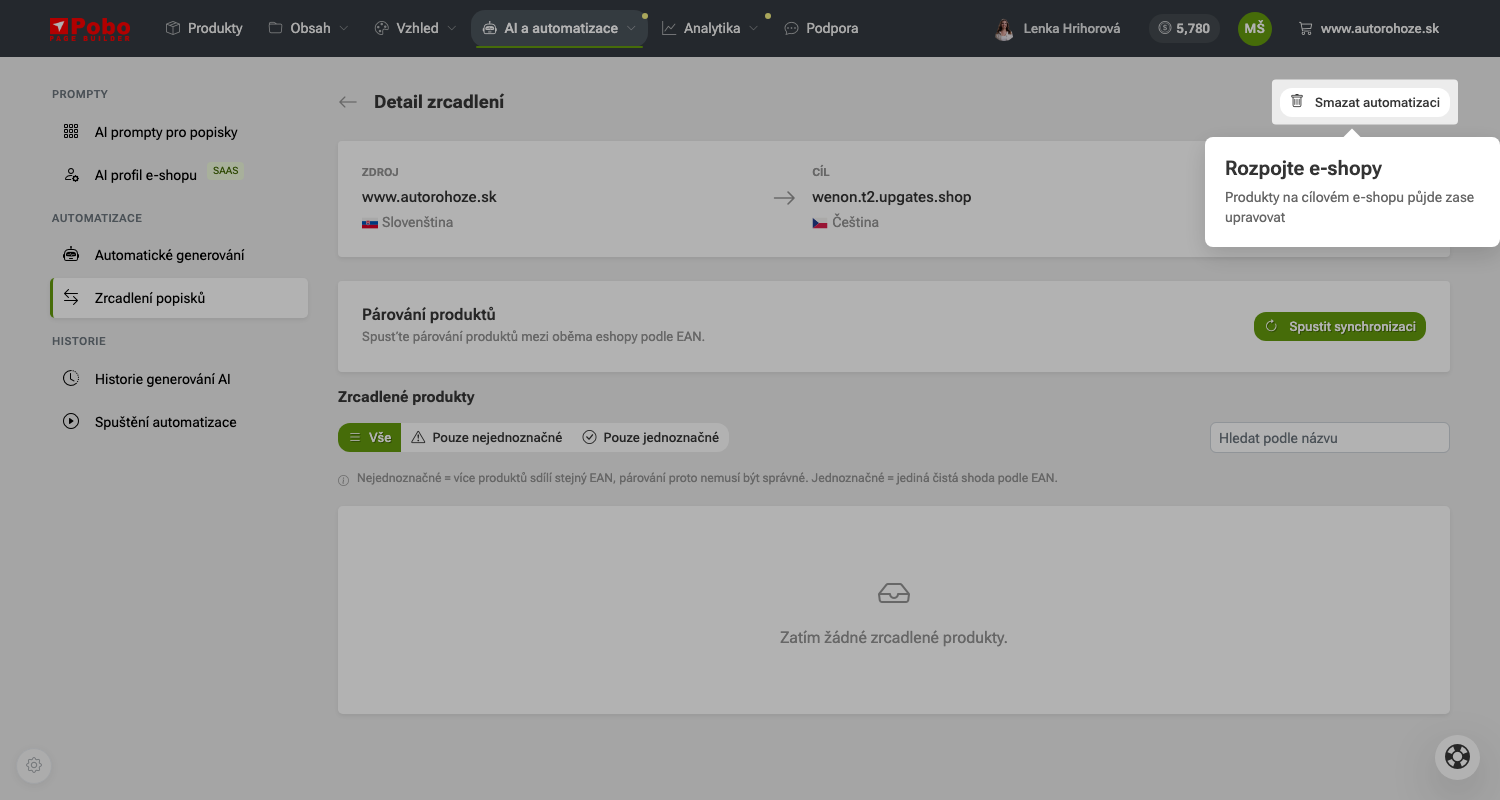
What happens when I click Delete automation?

After confirmation, the rule and all matches are removed, and the products in the target e-shop can be edited again. Pobo will return you to the list of rules.