How to connect Claude (MCP)?

How to connect Claude (MCP)?

The Claude MCP connection enables you to connect Claude Code, Claude.ai, or ChatGPT to your online store in Pobo Page Builder. This allows AI to work with your online store data and help with tasks such as styling or editing product descriptions.

DETAILED GUIDE

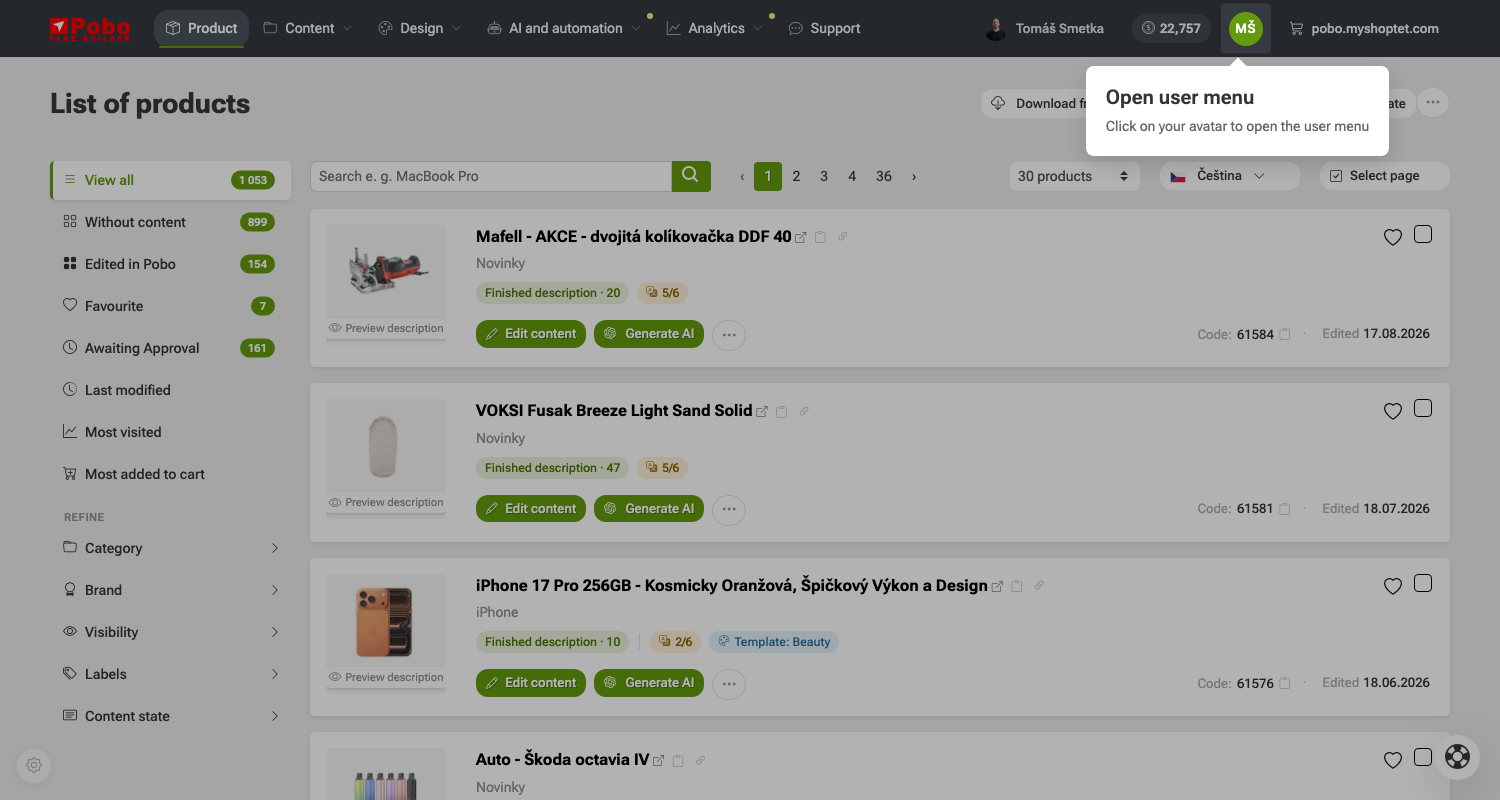
1. Open the user menu

Click your avatar in the top-right corner.

The user menu will open, where you will find profile settings, login keys, and the option to connect Claude.

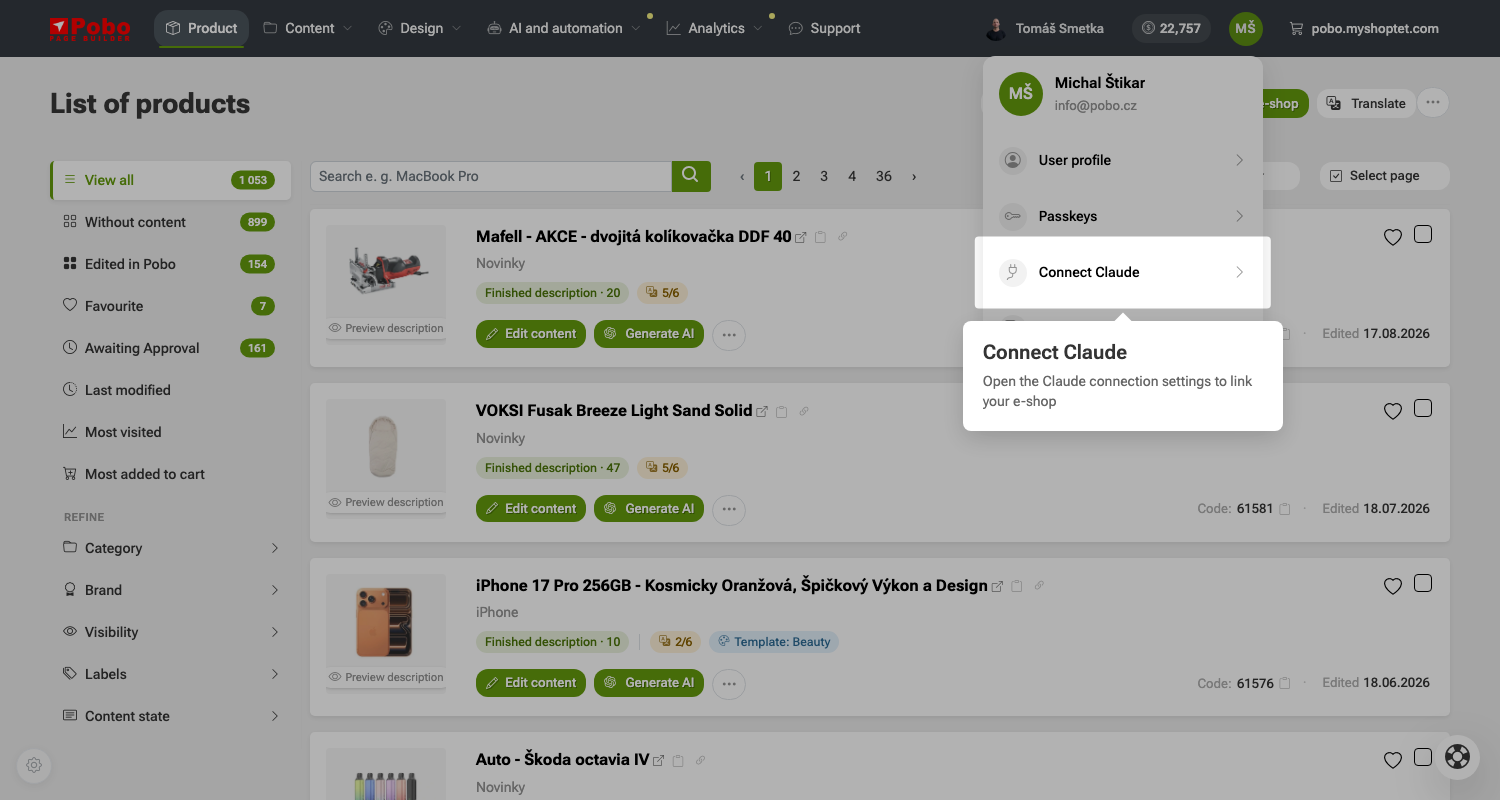
2. Click Connect Claude

In the open user menu, click the Connect Claude option.

This will open the connection settings, where you can connect Claude to your online store.

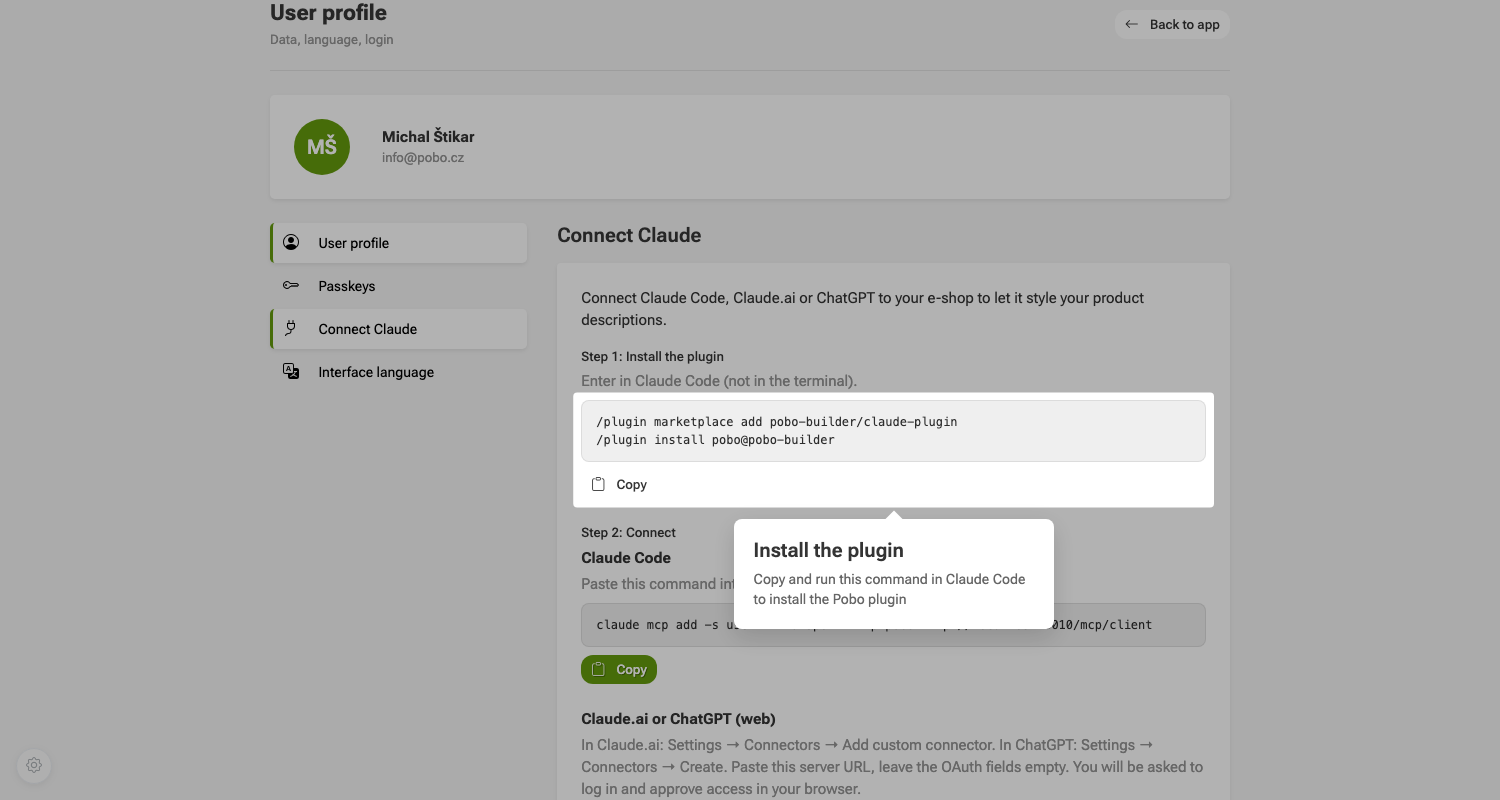
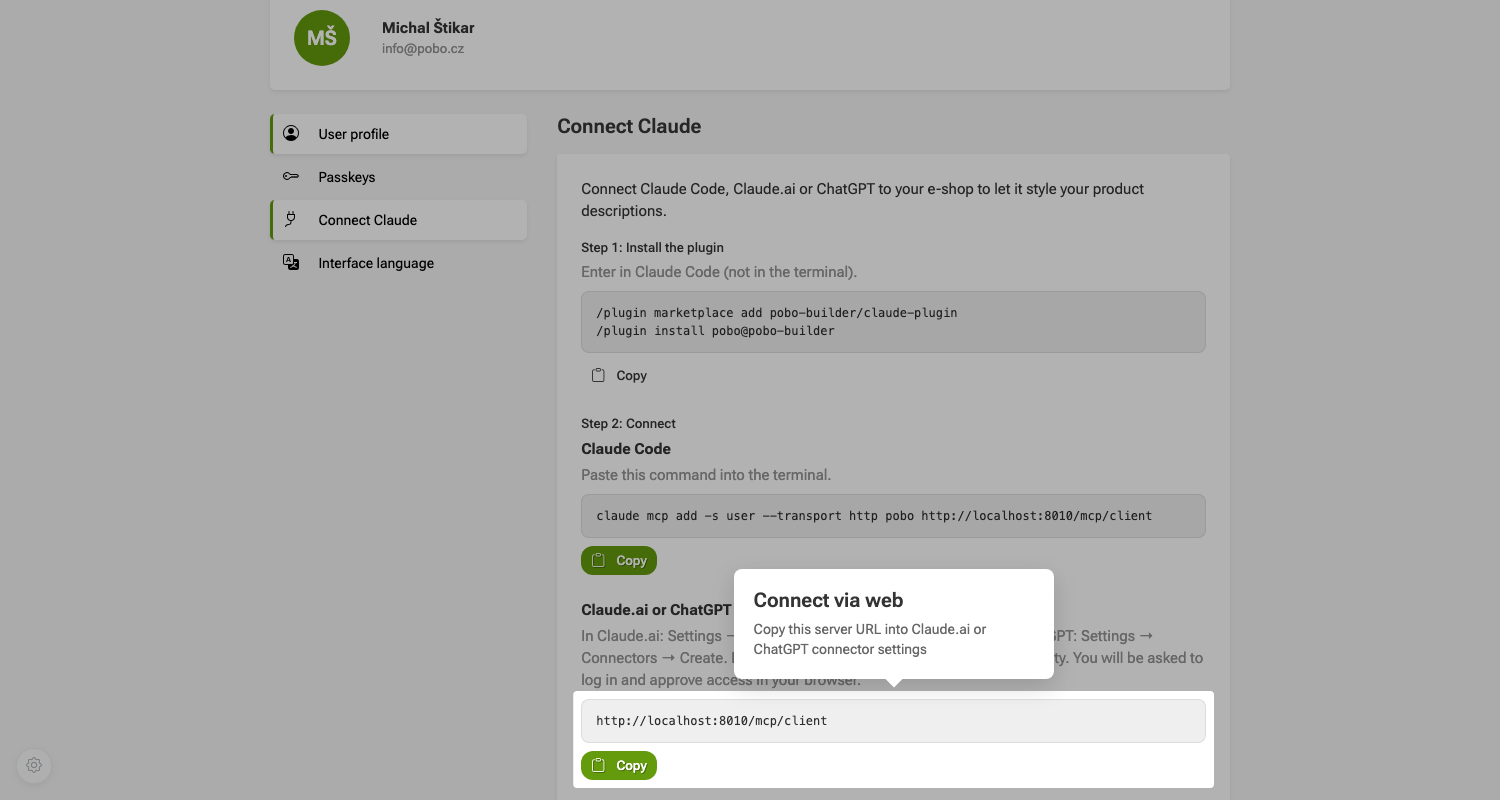
3. Install the plugin

In the Connect Claude section, copy the plugin installation command and run it in Claude Code.

Enter the command directly in Claude Code, not in the terminal.

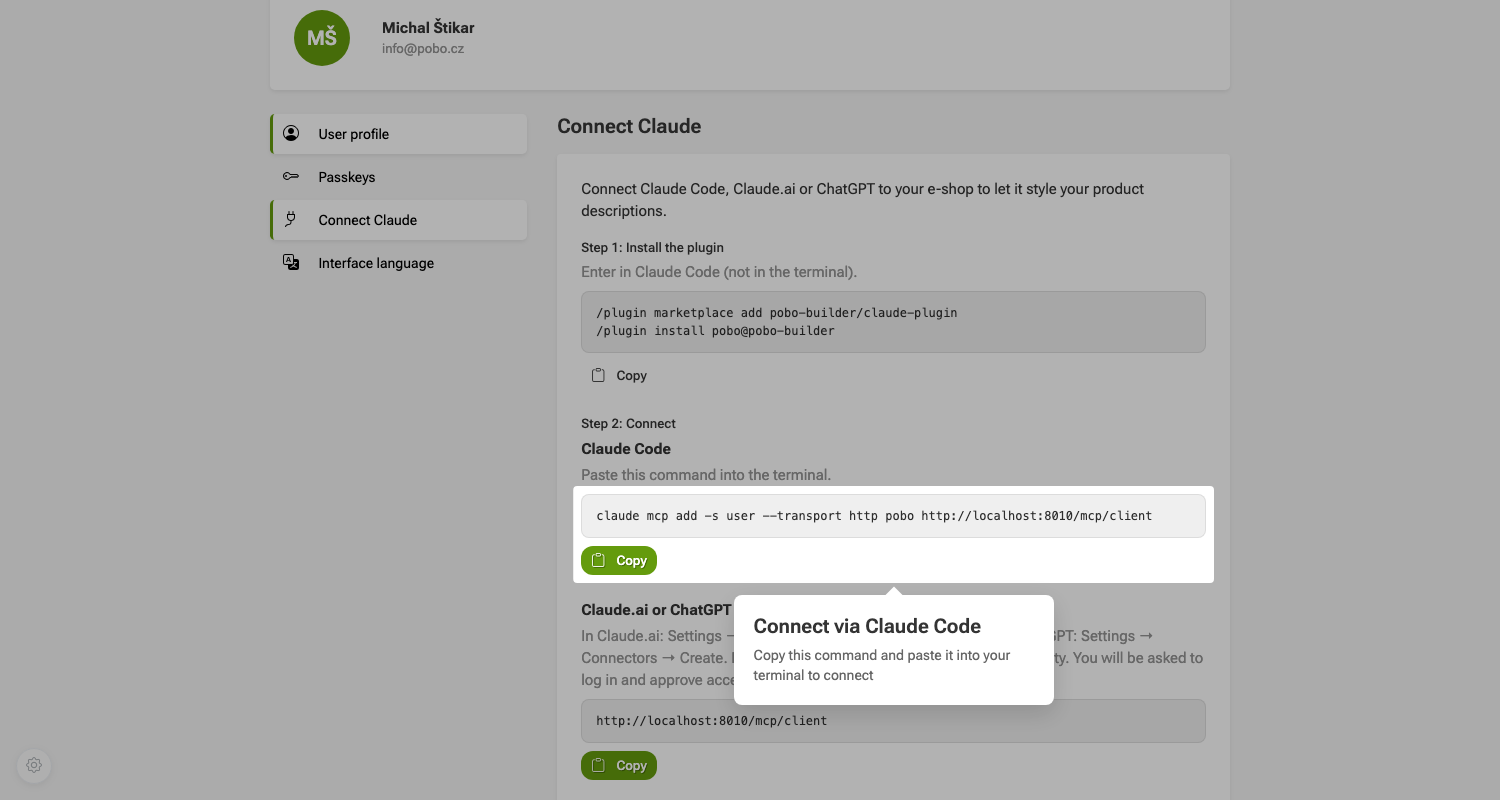
4. Connect Claude Code

Copy the command for connecting and paste it into the terminal.

This will connect Claude Code to your online store in Pobo Page Builder.

5. Connect Claude.ai or ChatGPT via the web

Copy the server URL and paste it into the connector settings in Claude.ai or ChatGPT.

After pasting it, complete the connection according to the instructions in the respective tool.

How to connect Claude (MCP)?

Need help?

My name is Petra, and I’ll be happy to help you with our add-on.

Feel free to write to me at: podpora@pobo.cz

Pobo

Thinking about Pobo? Let us show it to you.

Book a short 30-minute call where we'll show you how Pobo works, what it's good for, and how it can save you a lot of time and money.

Book a call