What's New in Pobo: Custom Color Palette, AI-Powered E-commerce Profile, and Analytics

16.03.2026
« Back to articles

What's New in Pobo: Custom Color Palette, AI Brand Profile, and Analytics Dashboard

Pobo has added new features for customizing text colors, generating more accurate product descriptions, and tracking the performance of product pages.

What's New in Pobo: Custom Color Palette, AI-Powered E-commerce Profile, and Analytics

Color Palette

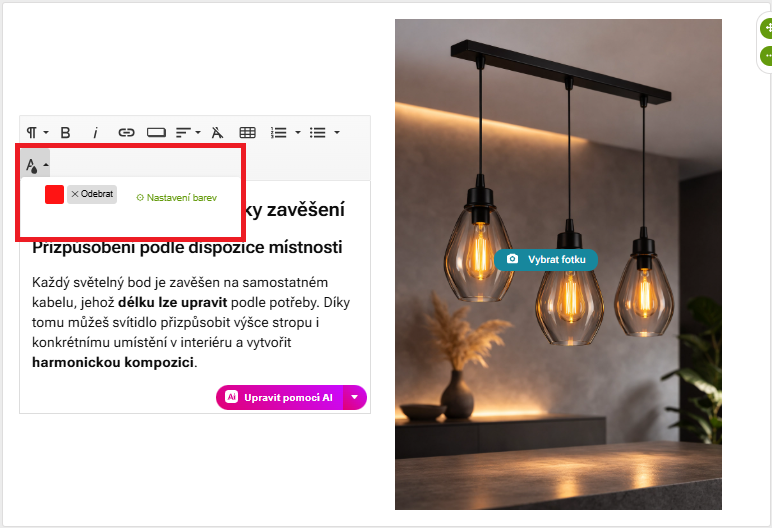
You can now create your own color palette in Pobu and use it to set text colors in widgets.
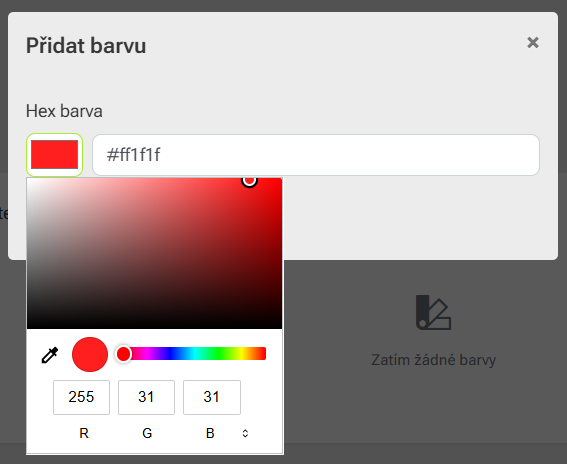
Setting the Color Palette

  1. In the top menu, go to the Appearance section and select Color Palette from the left panel.
  2. Click the Add Color button.
  3. A color selection window will open, where you can enter a specific HEX code or select a color using the color picker.
  4. After saving, the newly added color will appear in the list and will be available in the Pobo editor.

When editing content in widgets, you can easily select it directly from the toolbar when changing the text color.

Brand AI Profile

Another new feature in Pobo is the Brand AI Profile, which allows you to tailor generated content to your brand’s style and target audience.

How to proceed

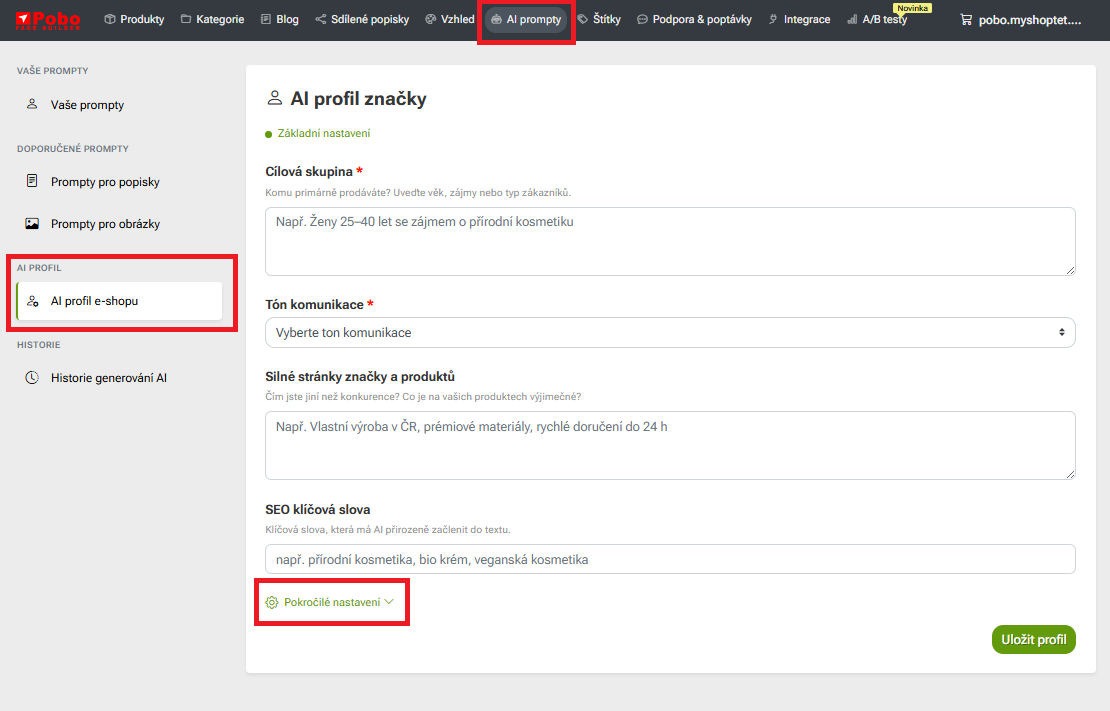
  1. In the top menu, go to the AI Prompts section and select "E-shop AI Profile" in the left panel.
  2. Fill in basic information about your brand, such as your target audience, communication tone, product strengths, or SEO keywords.
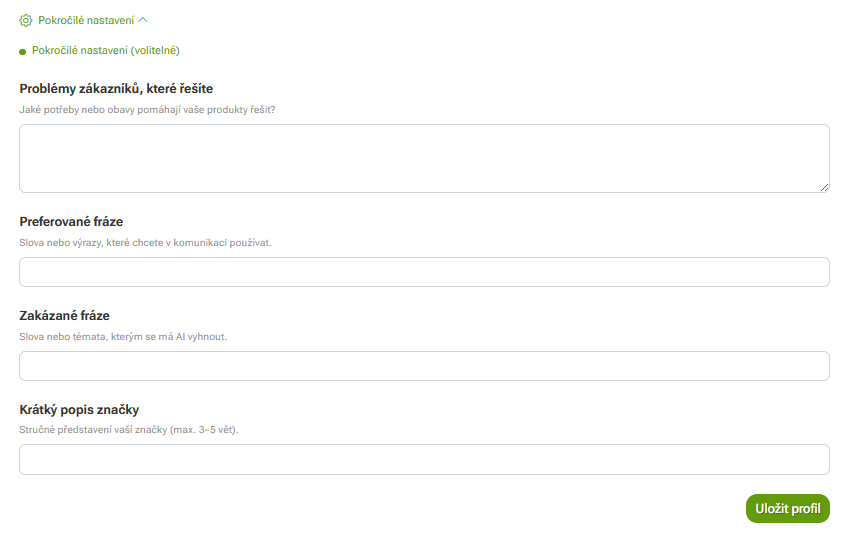
  3. In the advanced settings, you can also add preferred or prohibited phrases and a short description of your brand.
  4. Save the profile by clicking the Save Profile button.

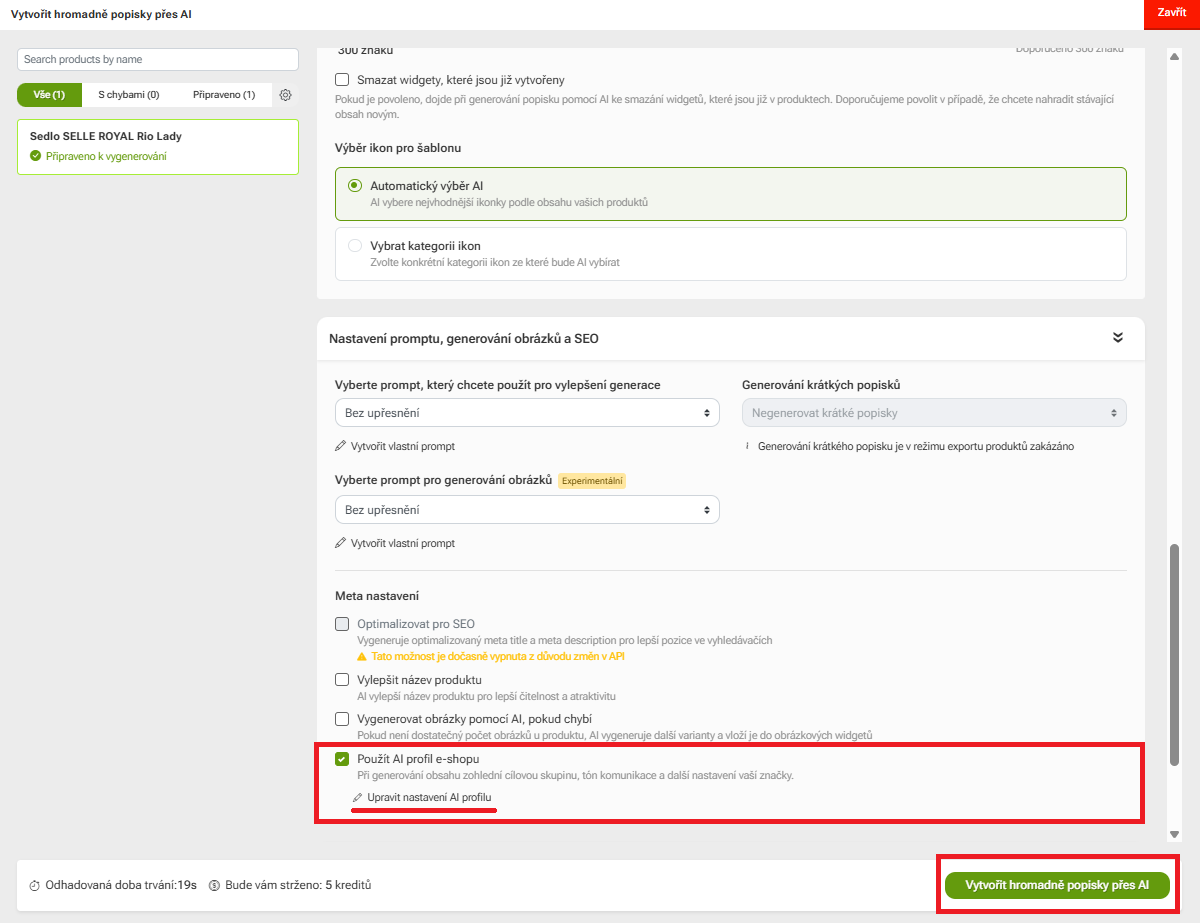
When generating descriptions later, you can select the AI E-shop Profile option in the advanced templates. This allows the AI to take your settings into account and create content that better matches your e-shop’s communication style and focus.

New Analytics Dashboard

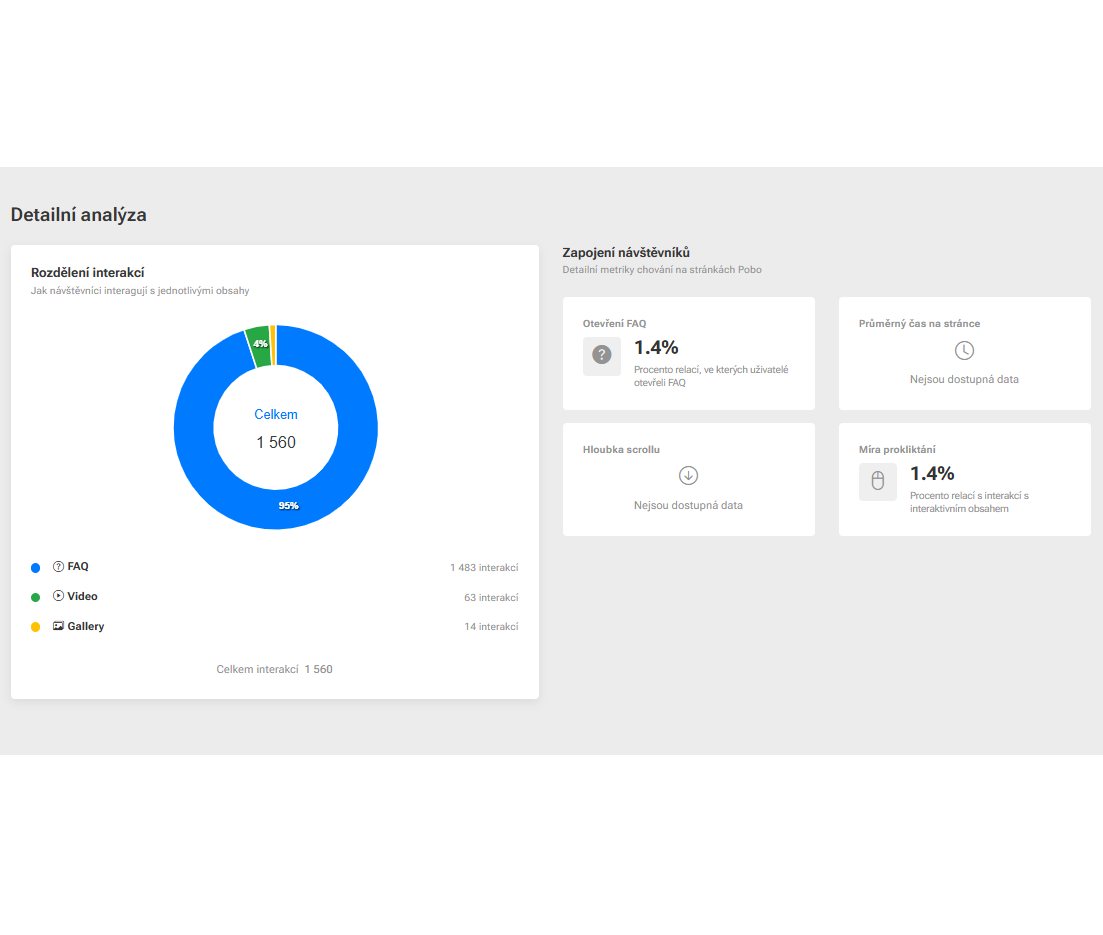
Poba now includes analytics that give you an overview of how visitors interact with your product pages and content created in Poba.
What's New in Pobo: Custom Color Palette, AI-Powered E-commerce Profile, and Analytics

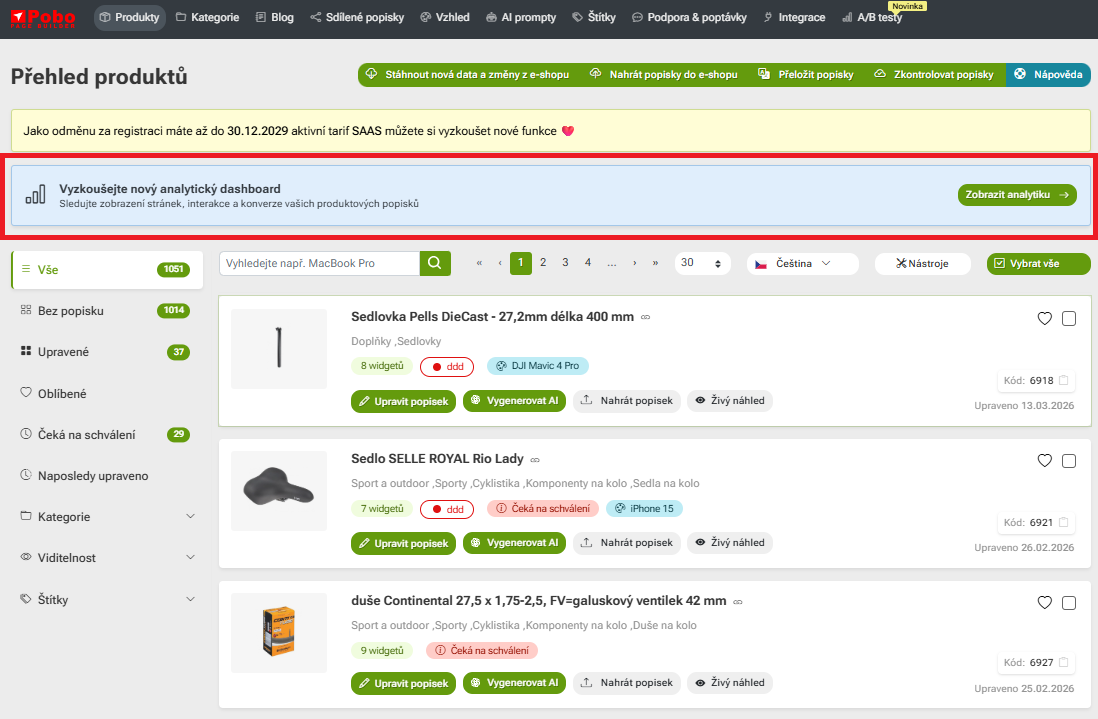
Where to Find Analytics

  1. In the product overview, you’ll see an informational banner notifying you that you can try the analytics dashboard.
  2. Click the “View Analytics” button to access the analytics interface.
  3. At the top, you can select the time period you want to track (for example, the last 7, 30, or 90 days, or a custom time range).

On the dashboard, you’ll then find an overview of key metrics, such as the number of product page views, content interactions, or products added to the cart.

The analytics also include time-series charts and a detailed analysis of visitor engagement, which will help you better understand how individual content elements perform and where there is room for further optimization.

Pobo

Thinking about Pobo? Let us show it to you.

Book a short 30-minute call where we'll show you how Pobo works, what it's good for, and how it can save you a lot of time and money.

Book a call